
Talanoa
Staff Guide
tah-lah-NOH-ah · Tongan for talking together
A picture board that speaks. A resident taps a picture and the phone says the words out loud.
Made for the residents of Faleofaz1What Talanoa is
Talanoa helps a person who can't speak tell you what they want, how they feel, and who they want to see. It was made for the residents of Faleofaz.
It works like a set of talking picture cards on a phone (or a tablet). Every picture says a short sentence out loud in a natural voice, for example the carrot picture says "I want a snack." The words also appear at the top of the screen, so people nearby can read them (tap them to show them big, section 8), and the picture that said them glows for 30 seconds.
There are 21 pages with 240 pictures in total, plus six important buttons that are always on screen.
- It never stays silent. If a voice recording can't play, the phone's own voice says it instead.
- The top row never moves. Its six buttons are always in the same place, so they can be found without looking.
- It works without internet once it has been set up.
- Nothing a resident knows moves unless the family asks. New words only fill empty spots, and new pages go at the end, just before ABC, unless the family asks for another spot.
2Setting up a phone
You only do this once per phone (a tablet works the same way). It takes a few minutes and needs Wi-Fi.
- 1Open Google Chrome
Use Chrome, not a preview from email or Google Drive.
- 2Go to the Talanoa address
Scan the QR code on the front of this guide with the phone's camera, or type tcdeveloper27.github.io/Talanoa (capital T in Talanoa).
- 3Tap the ⋮ menu (three dots, top right)
Choose Add to Home screen or Install app, then confirm.
- 4Open Talanoa from its new icon
It opens full screen like any other app.
- 5Leave Talanoa open on Wi-Fi for a few minutes
It saves the pictures and the voice onto the phone: about 9,300 short recordings with Michael, the voice it starts with. Tapping the board pauses the saving for a moment. Check in Settings: Status says Saving the voice for offline use: … of … while it works (the count goes up by itself while Settings is open), then ✓ Ready to use with no internet.
Step 3 (illustration). The menu on your phone may look a little different.
Step 4 (illustration). The Talanoa icon on the home screen.
3The screen at a glance
This is exactly what residents see. The numbers match the list below.
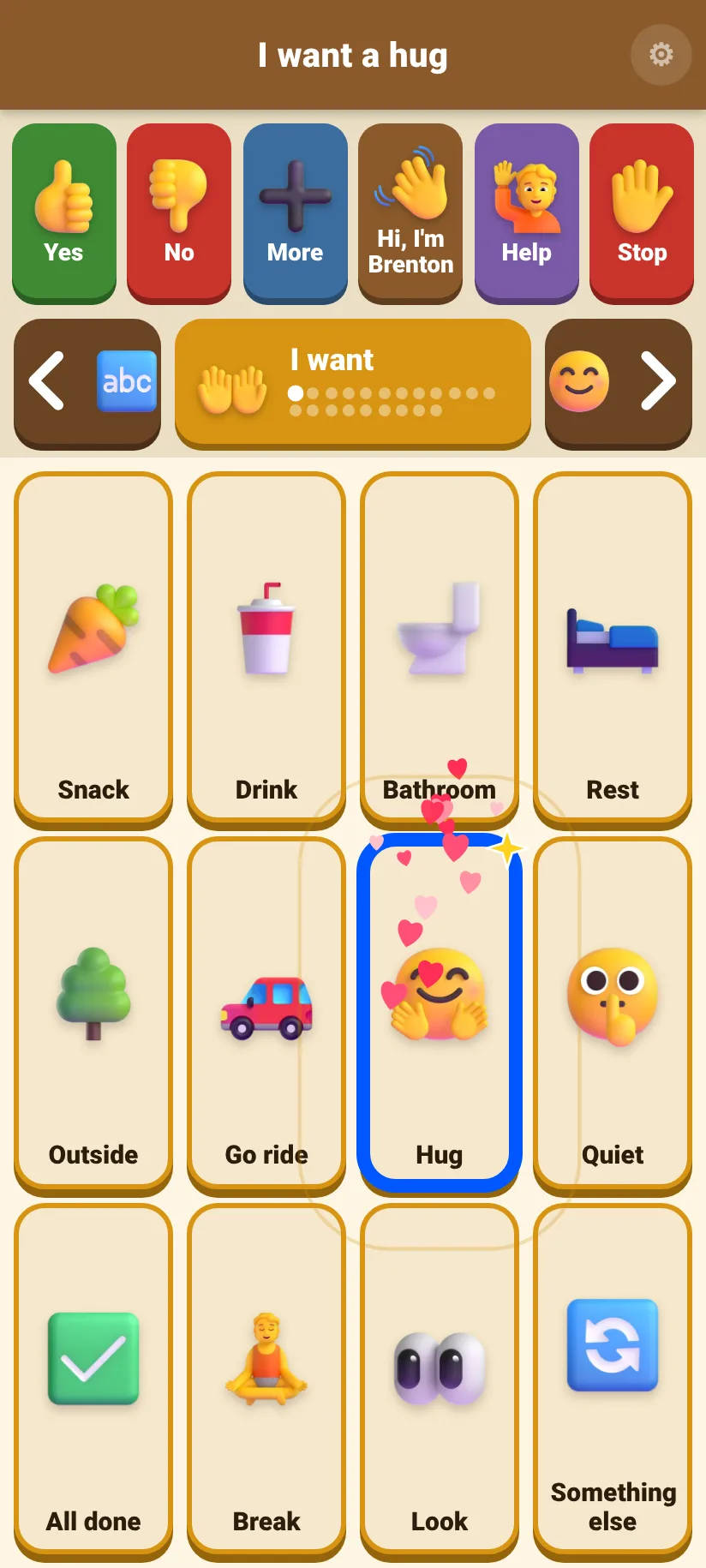 12345678
- 1Spoken words. Shows what was just said, so staff can read it too; a long sentence is cut short with "…". It flashes green on every picture tap (on the ABC page, when you tap Speak), and goes back to "Tap a picture to talk" after 30 seconds (with Build sentences on, the sentence stays until ✕, 🔊, or 2 minutes with nothing added: section 12). Tap the words to show them full screen (section 8). A small pie on its right is the wait timer, and a purple bar means a member of staff is modelling (section 14).
- 2The six "always" buttons. On every page, never moving:
 Yes
Yes No
No More
More Hi, I'm Brenton
 Help
Help Stop
Stop - 3Back arrow ◀. Goes to the previous page. The small picture shows which page it goes to.
- 4Page name. Shows which page you're on; the dots show where you are in the pages. Tap it to see a list of all the pages.
- 5Next arrow ▶. Goes to the next page. After the last page it goes back to the first.
- 6Picture tiles. 12 per page (6 bigger ones with Bigger pictures, section 12), always in the same spots. Tap one to speak. Swipe sideways across them to turn the page.
- 7Settings ⚙. For staff only. It opens only when you press and hold it for one second, so residents won't open it by accident.
- 8The glow. The last picture tapped glows for 30 seconds, so the resident can lift the phone and show you what they said. Tapping another picture moves the glow to it.
4Talking with it
Tap a picture once and the phone says the words.
- 👆One tap = one sentence
No double-tapping needed. A tap still counts if the finger slides a little or rests on the picture for a while.
- 🔁Tap again to repeat
It starts again from the beginning.
- ⚡Quick taps are fine
A new tap stops the last sentence and says the new one. Nothing gets stuck.
- 📳A little buzz
The phone vibrates slightly on each tap, if it can.
- ✨Show someone
The picture glows for 30 seconds, long enough to lift the phone and show a person what was said.
- 🎉It's fun on purpose
Every tap makes the picture bounce and throws sparkles: confetti for happy words, hearts for hugs, stars on the Toy Story page, bubbles for drinks. Tapping the same picture a few times in a row sets off a shower. Sad or hurt words get just a few gentle sparkles. It's only decoration: it never gets in the way of a tap, and it waits for the voice to start. It can be turned down or off in Settings, and Calm answers there gives Yes, No, every feeling and the Talk page the same gentle sparkles, so nobody picks an answer just for the show. On a phone set to reduce animations it starts with just bounces and rings.
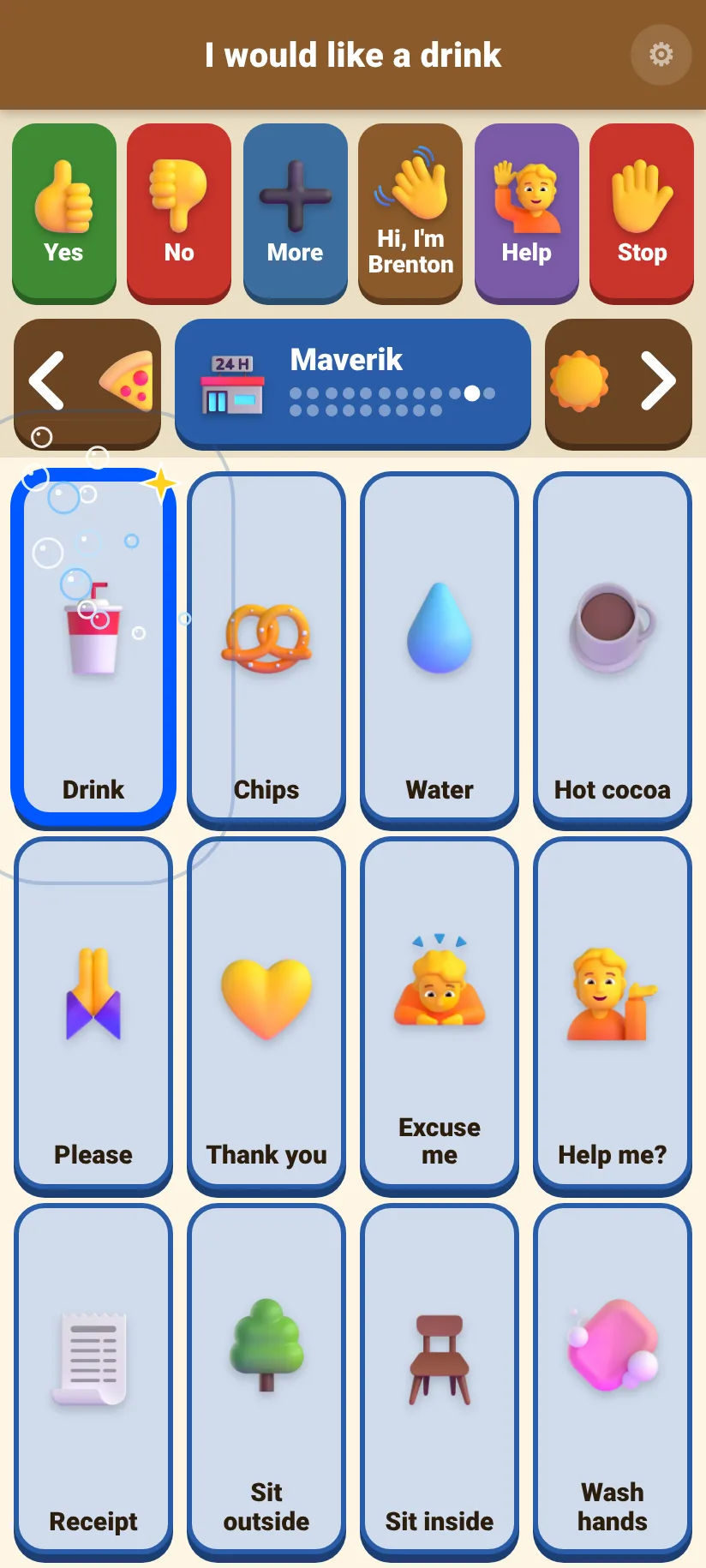
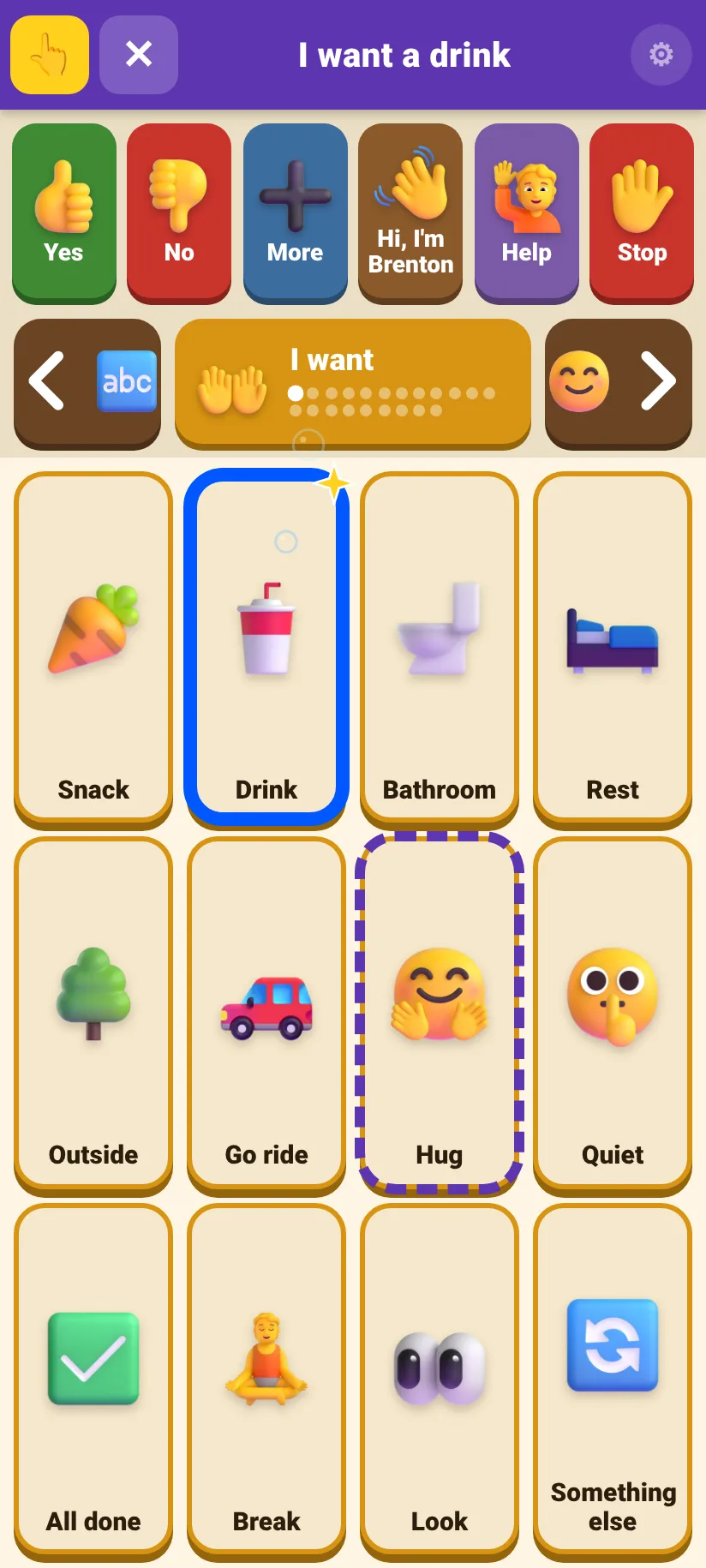
On the Maverik page, after tapping Drink. The top says "I would like a drink", and Drink glows.
5Moving between pages
Use the big ◀ ▶ arrows to flip through the pages, like turning the pages of a book, or swipe sideways across the pictures.
- 👈Swipe to turn the page
Slide a finger sideways across the pictures, like on a phone's home screen. The page follows the finger; let go early and it springs back. A swipe never says anything.
- ◀▶Or tap the arrows
Each arrow shows a small picture of the page it goes to. After the last page it goes back to the first.
- 🗂️Jump straight to a page
Tap the page name in the middle. All the pages appear as big buttons (scroll down for the rest): tap one to go there. To close the list without choosing, scroll to ✕ Close at the end, or press Back.
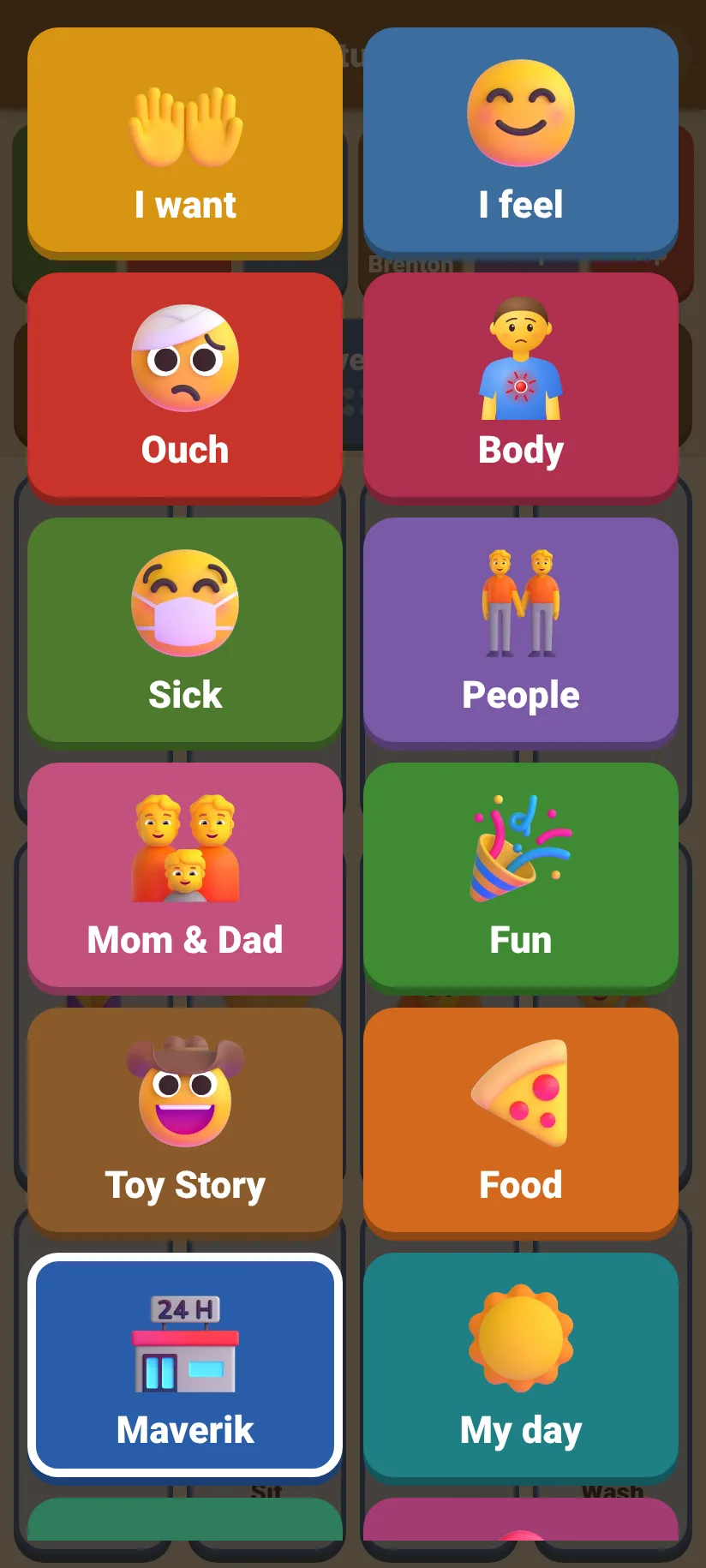
Tapping the page name shows every page (scroll for the rest).
The 21 pages, in order
 I want1
 I feel2
 Ouch3
Ouch3 Body4
Body4 Sick5
Sick5 People6
 Mom & Dad7
 Fun8
Fun8 Toy Story9
 Food10
 Maverik11
 My day12
 Places13
 Questions14
 Things15
 Talk16
 Tongan17
 Words18
 Hey19
Hey19 Time20
 ABC21
ABC21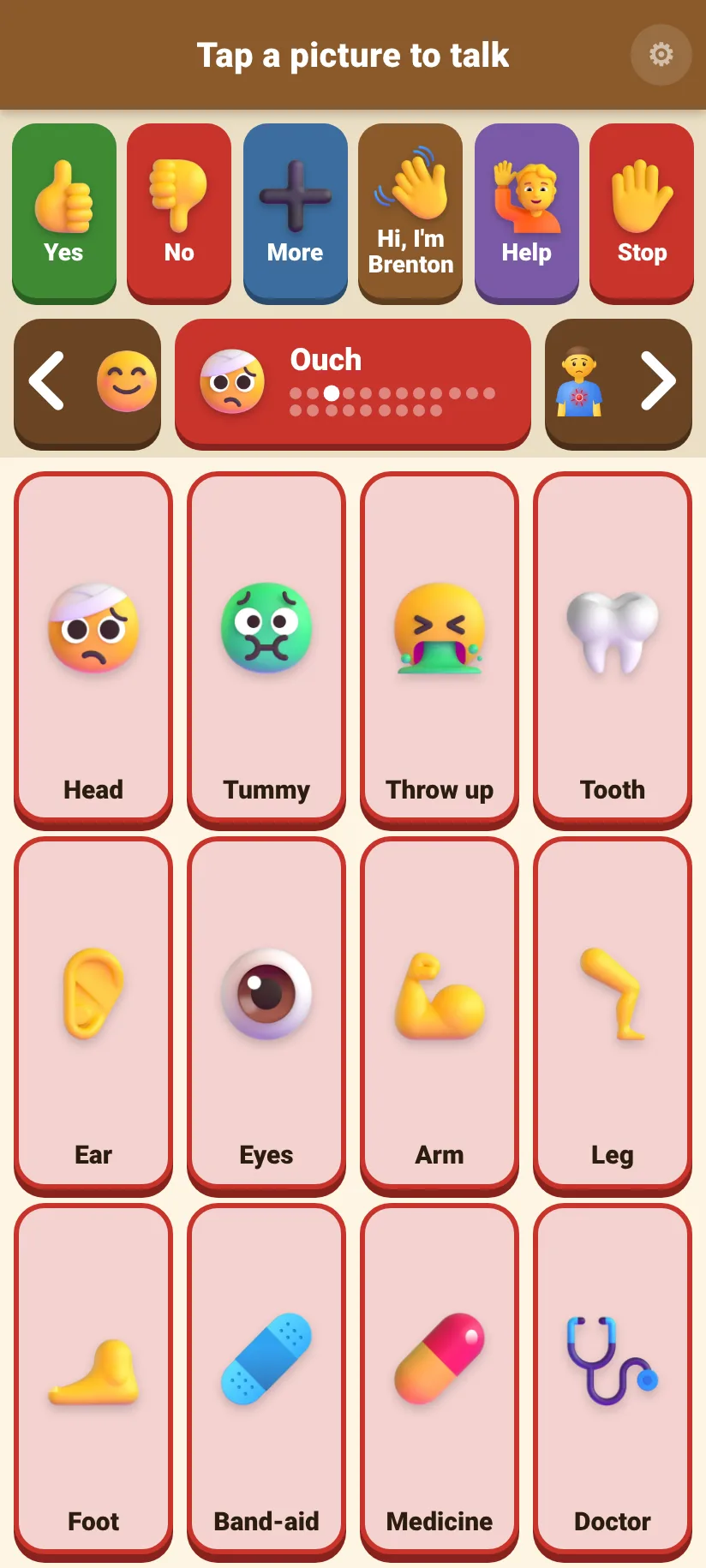
Ouch: point to where it hurts.
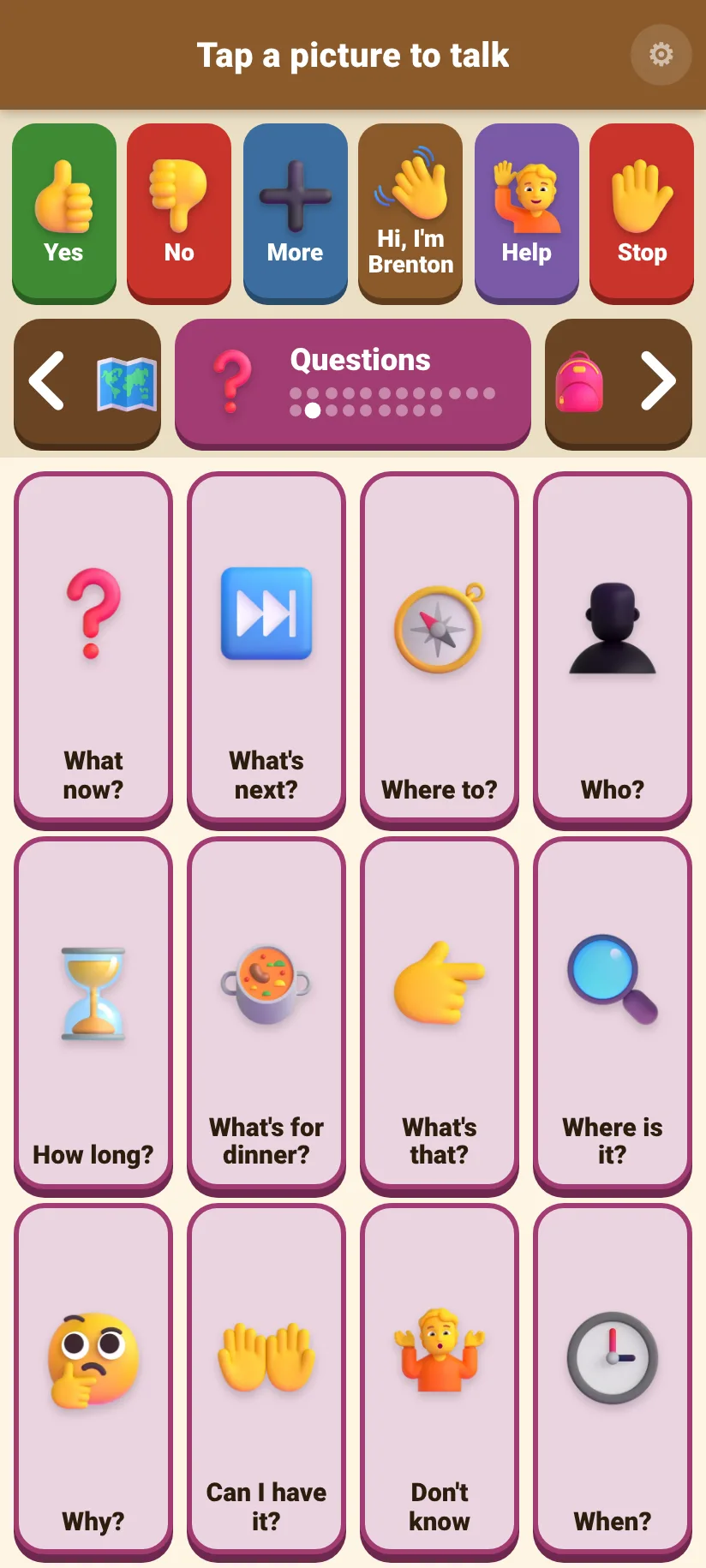
Questions: what's next, where, who, how long.
6The Mom & Dad page
All the parent and grandparent tiles are together on one page.
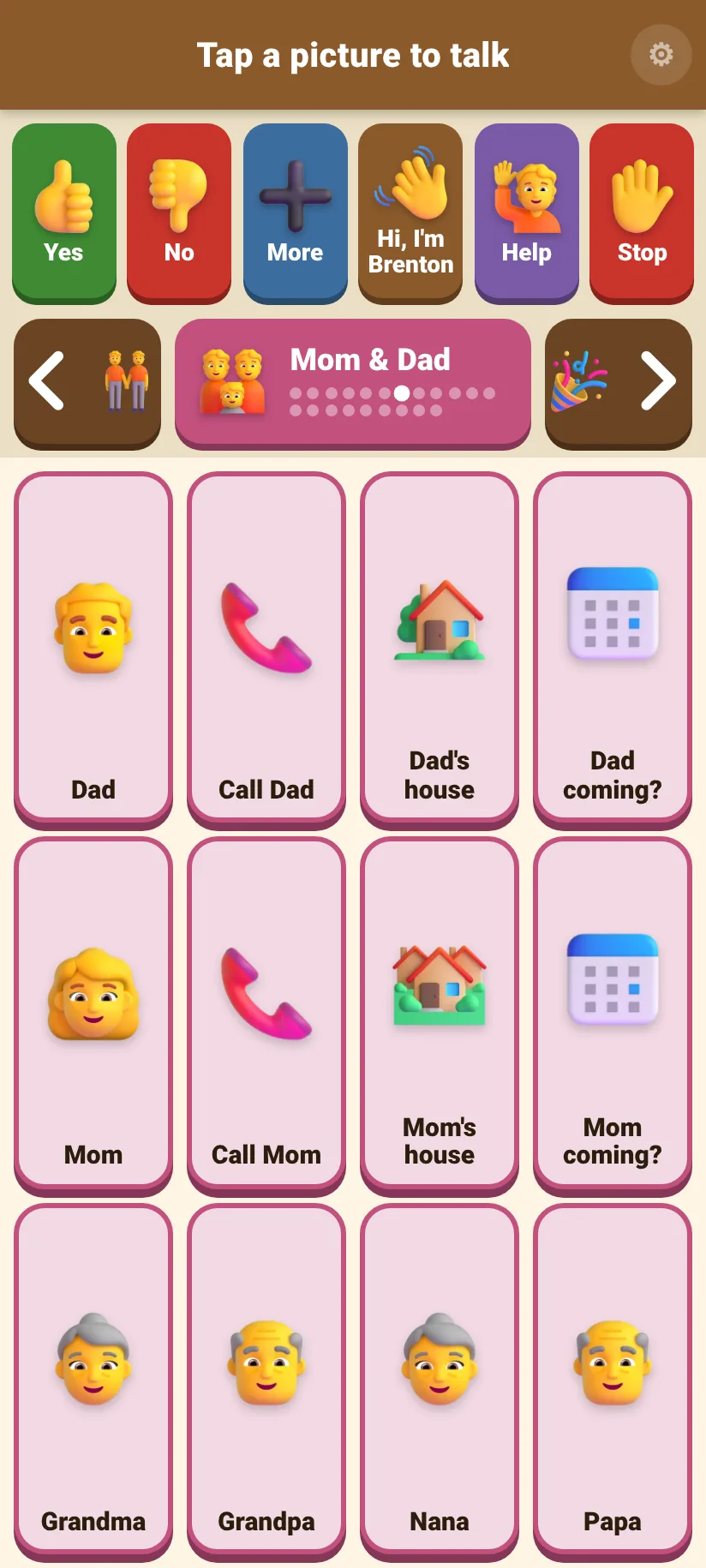
Every Dad tile has the matching Mom tile directly underneath it: Dad and Mom, Call Dad and Call Mom, Dad's house and Mom's house, Dad coming? and Mom coming? The bottom row has Grandma, Grandpa, Nana and Papa.
7The Talk page
Words for saying what they think, not just what they want.
Most of what people say isn't asking for things. It's commenting ("That's funny!"), giving an opinion ("I don't like it"), and steering the conversation ("Wait", "Your turn"). The Talk page gives residents those words too.
| Picture | Says |
|---|---|
 I like it I like it | “I like it!” |
 Don't like Don't like | “I don't like it” |
 Again Again | “Again! One more time” |
 Wait Wait | “Wait, please” |
 Funny Funny | “That's funny!” |
 Wow Wow | “Wow!” |
 Oh no Oh no | “Oh no!” |
 Mine Mine | “That's mine” |
 Your turn Your turn | “Your turn” |
 Come here Come here | “Come here, please” |
 Not now Not now | “Not now. Maybe later” |
 Leave me alone Leave me alone | “Please leave me alone” |
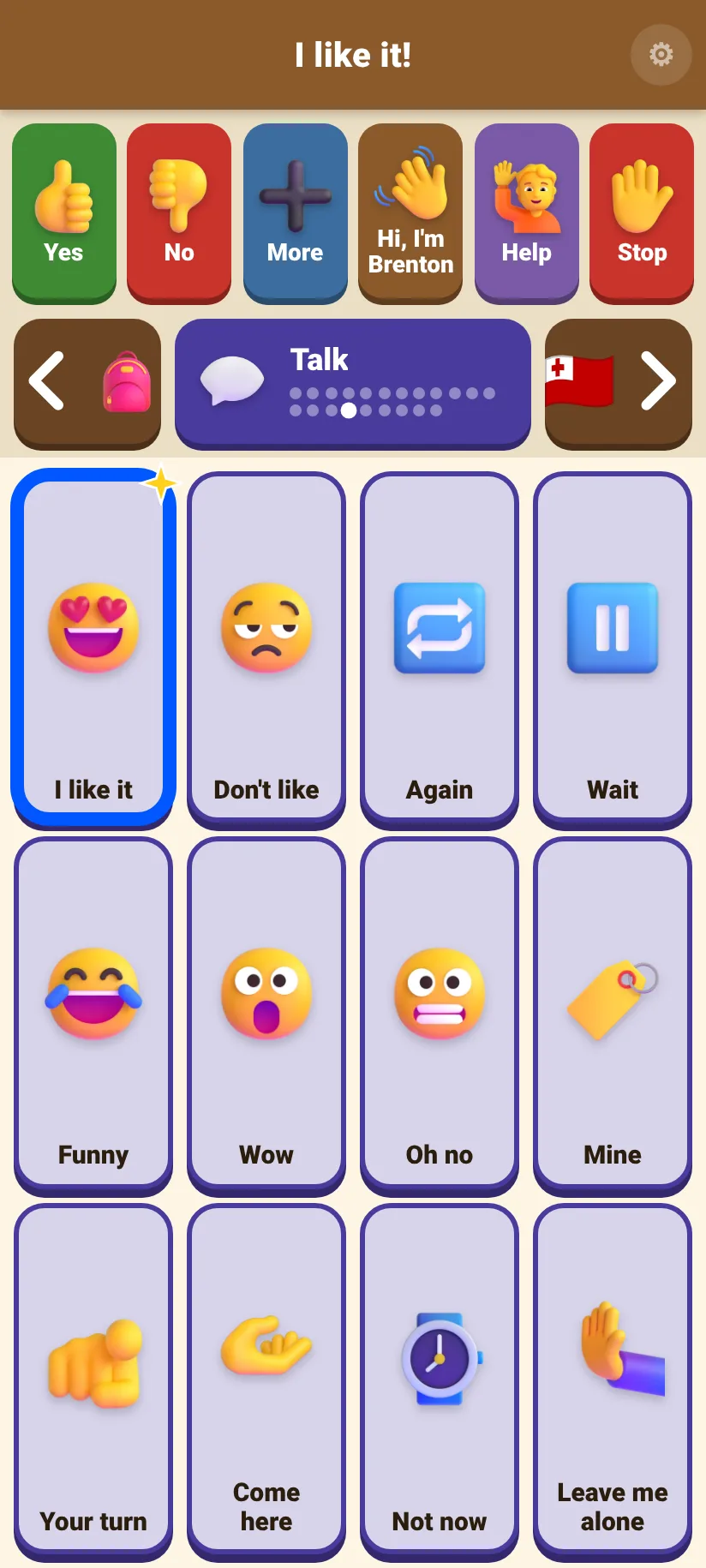
The Talk page.
8Show it big · About me
For a cashier, a noisy room, someone across the table, or someone new.
- 🔎Tap the words at the top
While they're still showing (30 seconds), the last thing said fills the screen in giant letters: hold the phone up, or hand it over. After that, tap the picture again first. 🔊 Say it again repeats it. ✕ Close (or Back) goes back to the board, and it closes by itself after a minute.
- 👋Hi, I'm Brenton (top row: about me)
Says: "Hi, I'm Brenton. I can't talk with my mouth, so I talk with this phone. Please be patient and give me time. My emergency contacts are in this phone's Emergency information." Tap the words at the top to show them big. Use it with anyone new: a driver, a cashier, a doctor, a police officer or a paramedic. The People page has a short Hi, I'm Brenton for a quick hello.
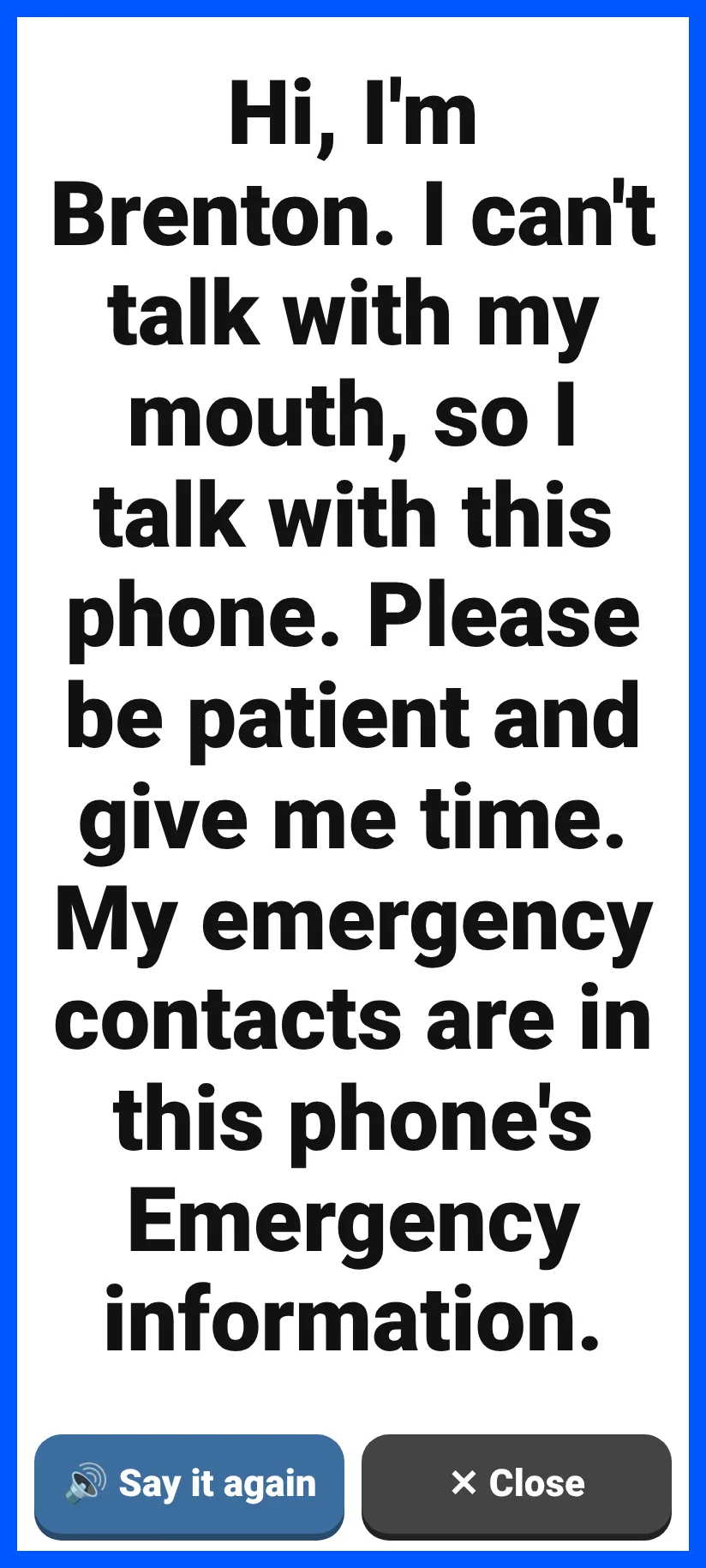
After tapping Hi, I'm Brenton, then the words at the top.
Set up the phone's Emergency information
The about-me message points to the phone's own Emergency information. Paramedics and police know to look there, and they can see it from the lock screen without unlocking the phone. Phone numbers and medical details belong there, not in Talanoa, because the Talanoa website is public.
- 1Open the phone's Settings app
The phone's own settings (the gear icon among the apps), not Talanoa's ⚙.
- 2Search for "Emergency"
Open Emergency information. On some phones it's called Medical info, or it's inside Safety & emergency or the Personal Safety app.
- 3Add medical details and emergency contacts
Conditions, allergies, medicines, and who to call (family, and Faleofaz).
- 4Turn on "Show on lock screen"
To check it: lock the phone, swipe up, tap Emergency, then Emergency information.
9Tongan words · your own photos and voices
Any picture can show a real photo, and speak in a real person's voice.
The Tongan page
Greetings and everyday words: Mālō e lelei (Hello), Mālō (Thank you), Mālō ʻaupito (Thank you very much), ʻOfa atu (Love you), ʻIo (Yes), ʻIkai (No), Fēfē hake? (How are you?), Sai pē (I'm fine), Kātaki (Please), Fakamolemole (Sorry), ʻAlu ā (Goodbye, go well), Mohe ā (Good night). Each tile shows what it means underneath, and the top of the screen shows both; the voice says just the Tongan word.
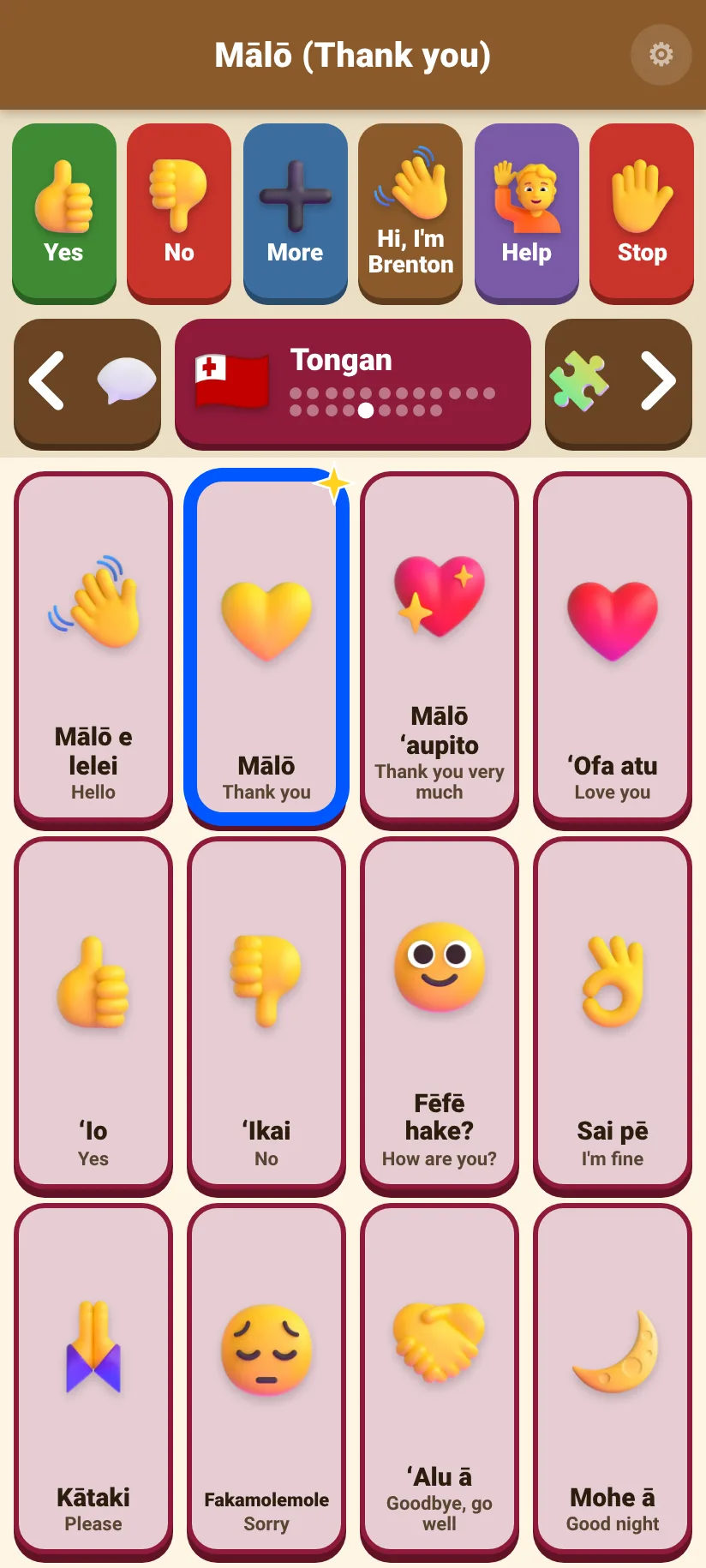
The Tongan page.
Record a voice, or add a photo
- 1Hold ⚙ → Photos and voices
Tap 📷 🎙️ Change a picture or voice…
- 2Choose the page, then tap the picture
📷 marks pictures that already have a photo, 🎙️ ones that have a recording.
- 3🎙️ Record, say the words, then ⏹ Stop
Find a quiet spot and hold the phone about a hand's width from your mouth. The first time, allow the microphone.
- 4Listen, then ✔ Keep this recording
Or ✖ Throw it away and try again. From then on, that picture speaks in your voice. (If you tap Done before choosing, Talanoa asks whether to keep it.)
- 5For a photo: 📷 Take a photo or 🖼️ Choose a photo
Good for family, staff, a favourite cup, their room, a store they love. Use the original picture again undoes it.
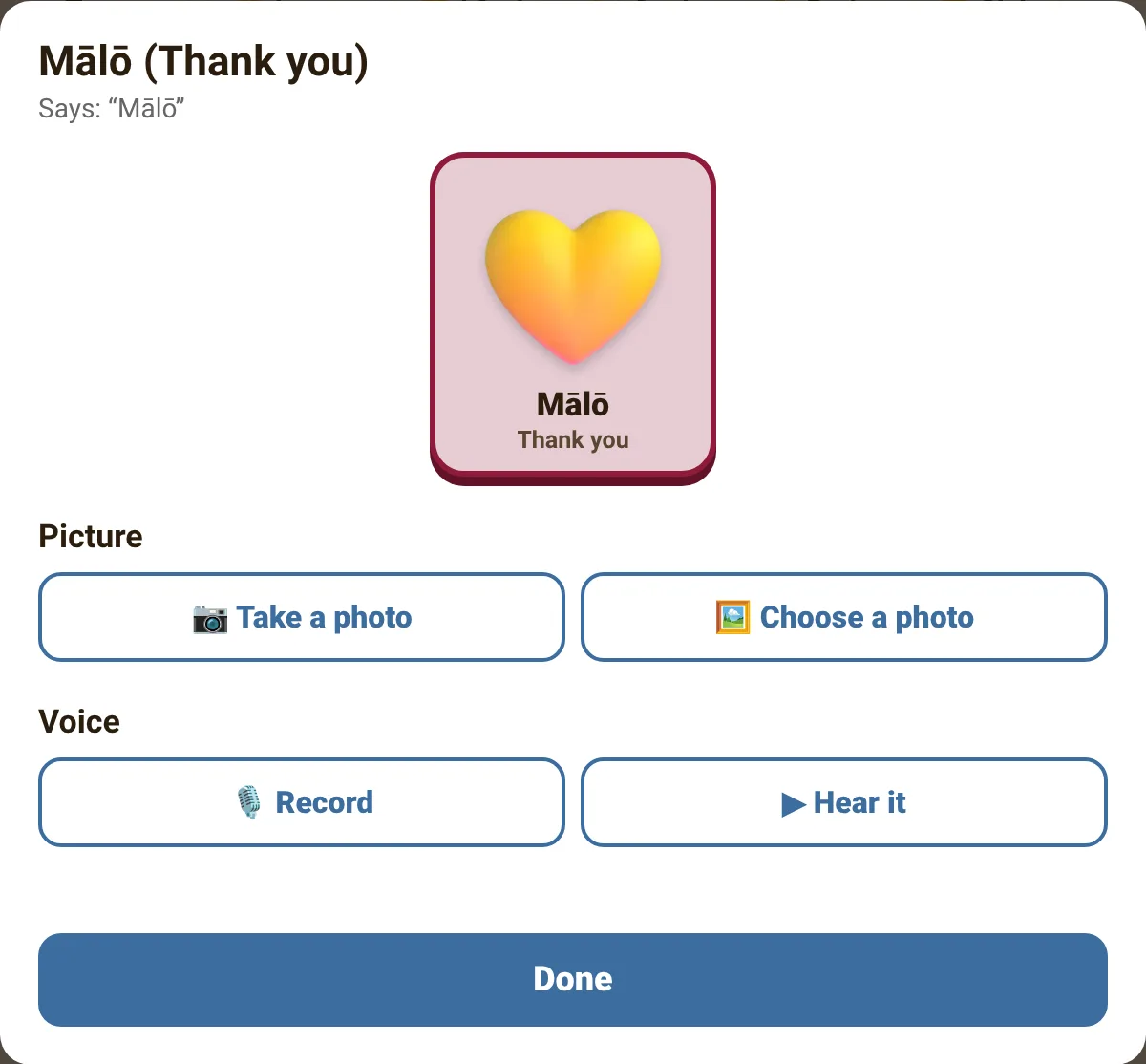
Changing one picture's photo and voice.
To make a whole new picture, or a scene or a story, see section 15.
10The ABC page
The alphabet, for spelling anything that isn't on a picture.
- 🔤Tap letters
Each letter says its name. Space goes between words, ⌫ takes back one letter, Clear starts again.
- 🔊Speak
Says the whole word or sentence, and puts it at the top, where it can be shown big.
- 🗣️The same voice as the pictures
The letters and every word on the board are recorded in every voice, and Michael (the voice it starts with) also knows about 9,000 everyday words. A word the chosen voice doesn't have (often a name) is spelled out, letter by letter, in that same voice. With Built-in voice, the phone's own voice reads it all.
Two extras can be switched on in Settings: word suggestions above the letters, and a row of numbers (section 12).
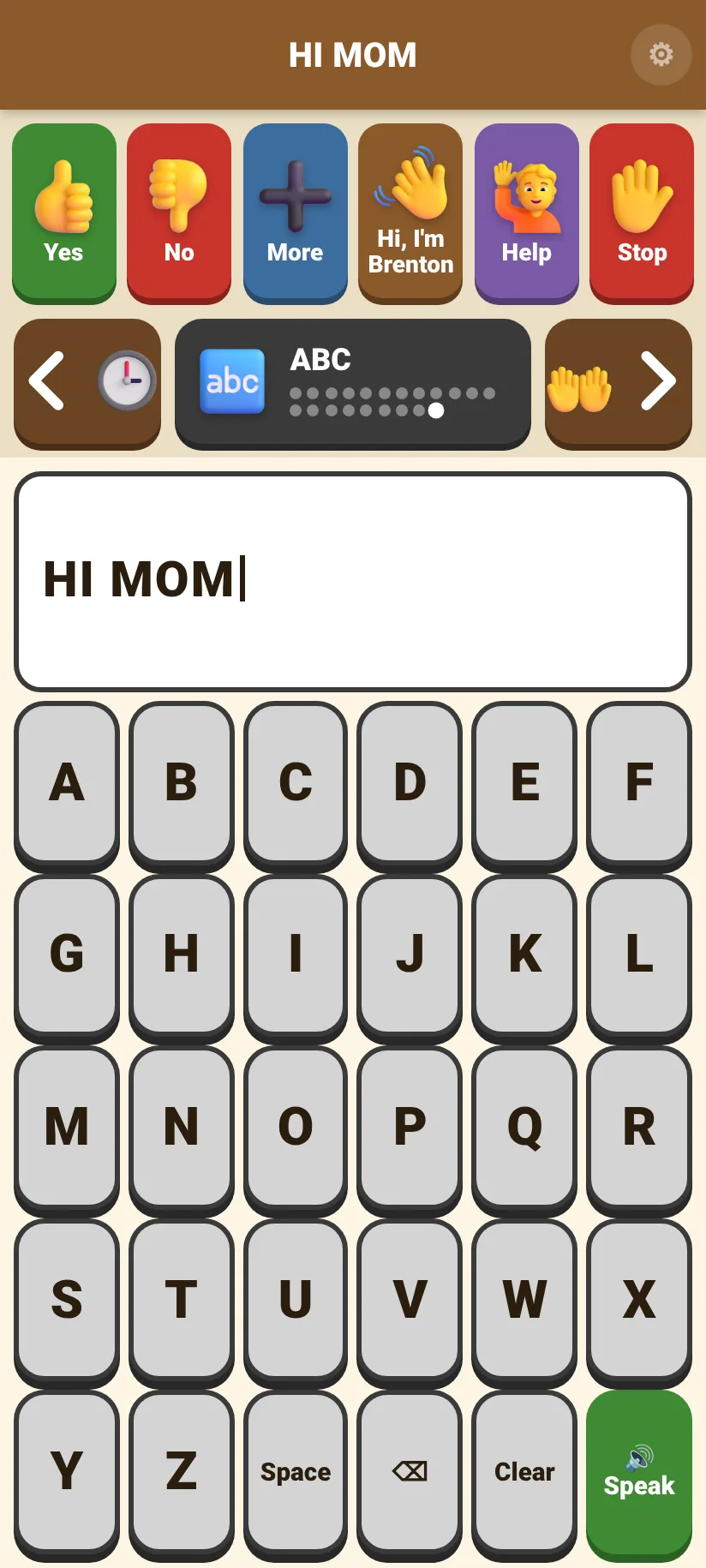
HI MOM, typed on the ABC page.
11The Body and Sick pages
For saying where it hurts, how much, and how they feel when they're unwell. They come right after Ouch (pages 4 and 5), so all three health pages are together. Head, Tummy, Tooth, Ear, Eyes, Arm, Leg and Foot are on the Ouch page.
- 1Take every tap seriously
Treat it as real until you've checked on them, even if they sometimes tap for fun.
- 2Find the spot
Point and ask: "Does it hurt here?" They can answer with Yes and No on the top row.
- 3Ask how bad, and since when
A little, A lot or Really bad are on the Body page; Just now and Yesterday are on the Sick page.
- 4Write it down
What they said and when, for the nurse or doctor. Better ("I feel better now") tells you when it has passed.
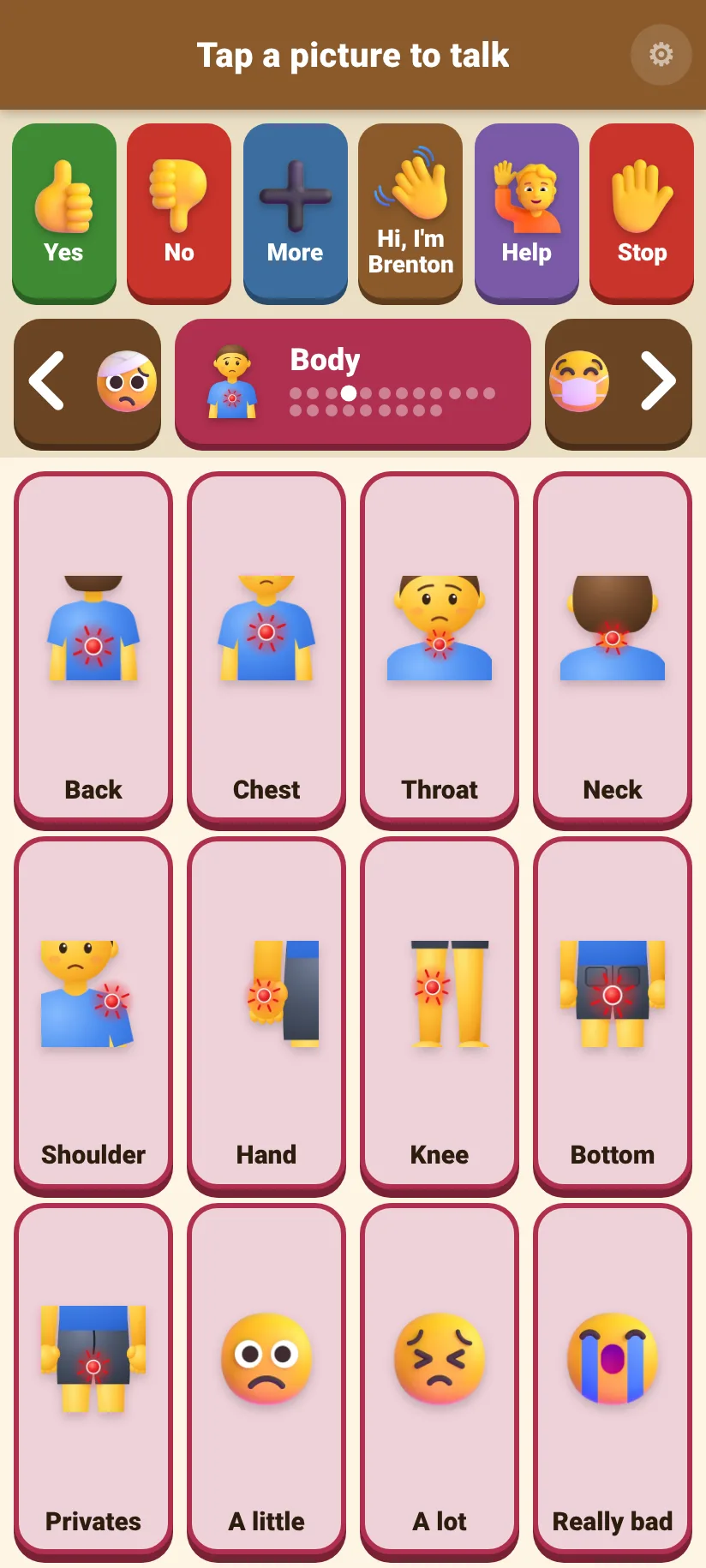
The Body page. The sore spot glows red.
| Body | Says | Sick | Says |
|---|---|---|---|
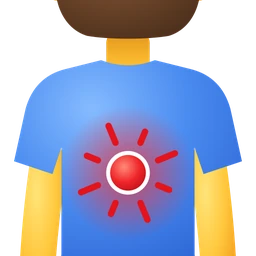 Back Back | “My back hurts” |  Dizzy Dizzy | “I feel dizzy” |
 Chest Chest | “My chest hurts” | 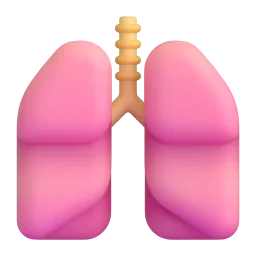 Can't breathe Can't breathe | “I can't breathe well” |
 Throat Throat | “My throat hurts” |  Bleeding Bleeding | “I am bleeding” |
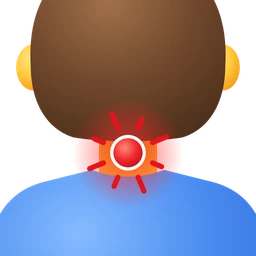 Neck Neck | “My neck hurts” | 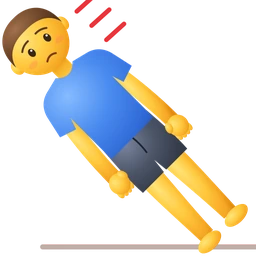 Fell Fell | “I fell down” |
 Shoulder Shoulder | “My shoulder hurts” |  Fever Fever | “I have a fever” |
 Hand Hand | “My hand hurts” |  Cough Cough | “I have a cough” |
 Knee Knee | “My knee hurts” | 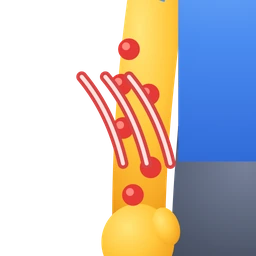 Itchy Itchy | “My skin is itchy” |
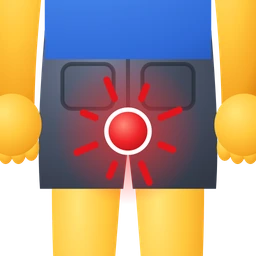 Bottom Bottom | “My bottom hurts” |  Pee hurts Pee hurts | “It hurts to pee” |
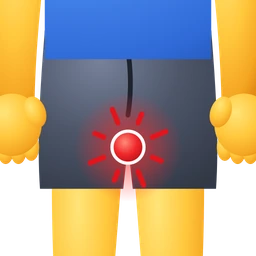 Privates Privates | “My private parts hurt” |  Can't poop Can't poop | “I can't poop” |
 A little A little | “It hurts a little” |  Just now Just now | “It just started” |
 A lot A lot | “It hurts a lot” |  Yesterday Yesterday | “It started yesterday” |
 Really bad Really bad | “It hurts really bad” |  Better Better | “I feel better now” |
12Sentences, suggestions and more
Things other talking apps have, added in October 2026. The Words page, Find a word and This week are always there. The other five are switched on in Settings (section 17) and are off until someone ticks them, so the board stays exactly as he knows it.
- The Words page (just before ABC): 12 single words, I, You, Want, Like, Go, Get, Do, Look, More, Not, Different, Finished. Each says just its word. On their own they answer quickly ("Different!"); with Build sentences they combine into things nobody programmed, like I · Want · Go · Outside.
- Build sentences (Settings → Talking in sentences): every picture is still said straight away, and its words also line up at the top. 🔊 on the left says the whole sentence, one picture after another; ✕ starts again. Tapping the same picture several times in a row puts it in the sentence once (it's still said every time). After 🔊, the next picture starts a new sentence, and a sentence nothing is added to for 2 minutes clears itself (after 12 pictures the oldest drops off). Tapping the words at the top shows what was just said big: the last picture's words, or the whole sentence right after 🔊. 📝 Show the whole sentence under them switches to all of it, and back. Words spoken on the ABC page join the sentence too.
- Word suggestions on the ABC page: three words above the letters, finishing the word being typed. Words he has spoken before come first (they're remembered while Count taps on this phone is on, and Clear the counts forgets them). Tap one to finish the word (it's said, and a space follows).
- Numbers on the ABC page: a row of numbers under the letters, 1 to 9 then 0, like a phone keypad. Numbers are said as words: 15 is "fifteen", 2026 "two thousand twenty six".
- Recent sentences with the big words: under the big words, the last few things said; tap one to show it and say it again (handy when someone missed it).
- Bigger pictures (6 on a screen) (Settings → Screen): for someone who needs bigger targets. Each page becomes two screens, "Food" and "Food 2", in the same order.
- Find a word (in Settings, under Pages to show): type part of a word, like pizz; it lists each picture that matches and its page (Pizza Food page). Tap a result and the board turns to that page and outlines the picture (nothing is said).
- This week (Settings → Most-used pictures): taps on each of the last 7 days, and pictures used for the first time this week. Like the other counts, it stays on this phone and is never sent anywhere.
13The Hey and Time pages
Two pages added in October 2026, just above ABC.
Hey: getting attention, and fixing a mix-up
Hey! and Excuse me play a two-note chime, with a soft yellow flash (unless Fun effects are Off), and then the words, so people turn to look first. Please wait ("Please wait. I'm finding my words.") also shows the words big, to hold up for a cashier. The rest help when a conversation goes wrong: Listen (“Listen to me, please”), Slow down (“Please slow down”), Say it again (“Can you say that again?”), Don't understand (“I don't understand”), Not right (“That's not what I meant”), Not finished (“I'm not finished”), Yes or no (“Ask me a yes or no question”), Show me (“Show me, please”), Thank you (“Thank you for listening”).
Time: questions, with the answer on a card
- What time? A clock and the time ("3:15, Saturday afternoon").
- What day? Today's date, with this week underneath (a visit day is outlined).
- Dad coming? and Mom coming? Counts down to the next visit set in Settings → Visits: "on Saturday", with a 🌙 for each sleep. With no date set, just the question is said, for you to answer.
- How long? The wait timer, if one is running; What's next? First / then, if staff have set one (section 14).
- Now, Later, Morning, Afternoon, Tonight, Tomorrow: words to answer with.
The question is said first, as always: it's him asking. On the card, 🔊 Say it reads the answer in the board's voice ("The time is three fifteen in the afternoon"). ✕ Close or Back goes back to the board; the time, date and visit cards also close by themselves after a minute.
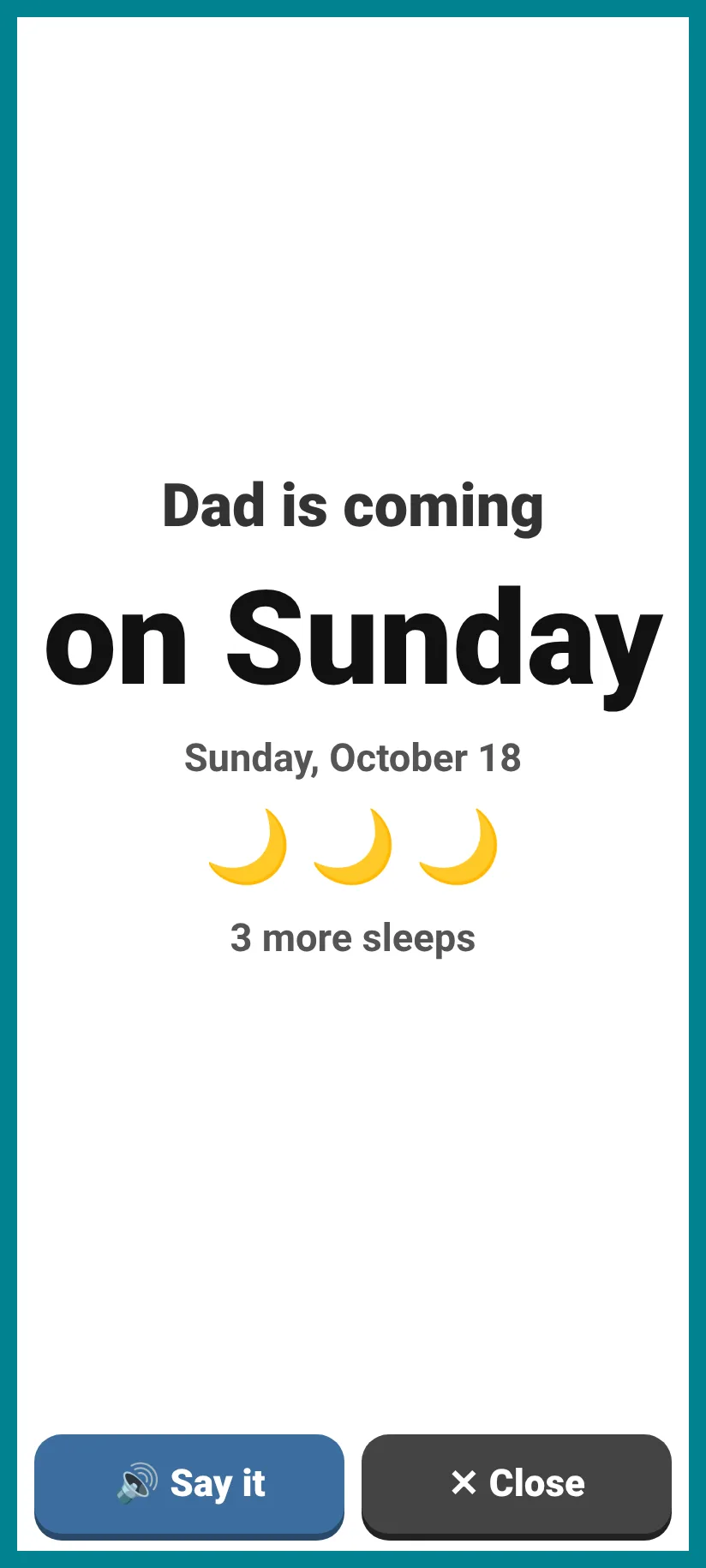
Dad coming? on the Time page: the visit, and the sleeps until then.
14Staff tools
Along the top of Settings (hold ⚙). They're for staff, so they're out of the way of the board.
- ⏳Wait timer
Choose how long (1 to 30 minutes) and, if you like, a picture for what comes after ("Then: Toy Story"). A red pie shrinks as the time goes; at the end a chime and "All done waiting!". ✕ Close hides it: a small pie stays at the top right of the brown bar, and tapping it shows the timer again. The screen stays on while it runs. To stop it early: ⏳ again → Stop the timer.
- ➡️First, then
Tap two pictures in order (Shower, then Toy Story). They show big, as First and Then; "✓ Shower is done" greys out the first. What's next? on the Time page shows them again. They're gone by themselves after 12 hours, or ➡️ → Clear it.
- 🤔Choose between
2 to 4 pictures fill the screen for him to choose from: lunch, clothes, an outing. 🔊 asks the choice ("Water, Juice, or Milk?"). The one he taps is said and the others fade; he can still change his mind. Close when you're done.
- 🧑🏫Modelling
For using his board yourself while you talk with him (section 20). While it's on, the brown bar turns purple and your taps are said but not counted, nor put in today's list. 👆 on the bar, then a picture: that picture glows for a few seconds without a word, a hint for him to tap it himself. ✕ on the bar, or 10 minutes without a tap, switches it off. Also here: Word of the week, one picture with a small gold ⭐ for 7 days, to remind everyone to use it.
- 🔒Stay on this page
At a meal, say: the board stays on the page that's showing. The arrows go, and swiping, the page list and stickers don't turn the page; the top row works as always. Hold ⚙ → 🔓 Unlock; it also unlocks by itself after 2 hours.
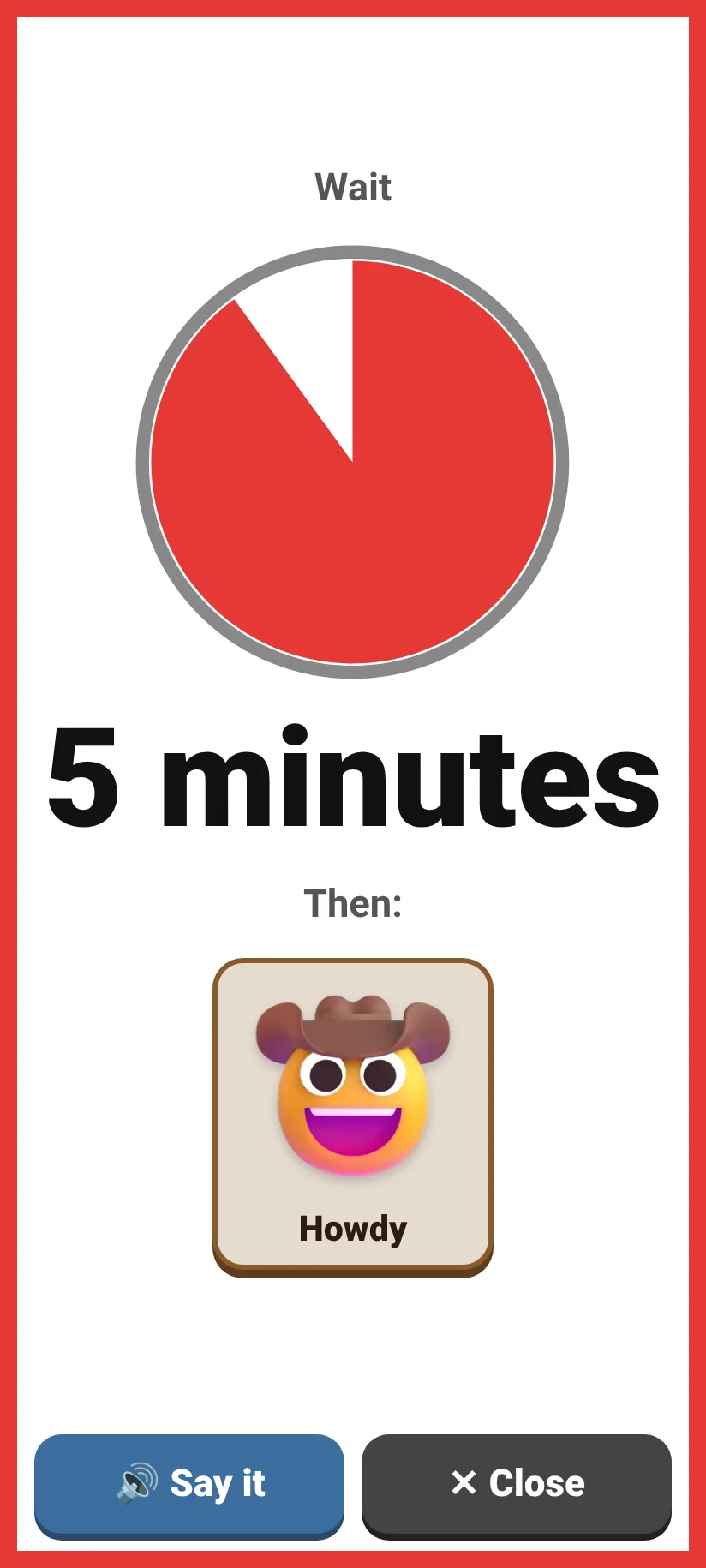
The wait timer, with what comes next.
Modelling: the bar turns purple; 👆 gives a hint.
15Your own pictures, scenes and stories
Made on the phone, kept on that phone only (and in its backups), never on the website.
- ➕A new picture
Hold ⚙ → Photos and voices → ➕ Make a new picture. Type the words under the picture (and what it says, if that's different), then give it a photo, or one of the board's own pictures (🙂), and a recording if you like. With no recording it talks in the board's voice when the voice has every word (Michael knows about 9,000), one word at a time, otherwise in the phone's own voice; the screen says which. New pictures go on a page called My pictures, just above ABC, so nothing he knows moves; Page → A new page… starts another (Church, Work…). In Change a picture or voice, a page made on the phone shows ➕ New in its empty spots: tap one to make a picture in that spot. 🗑 Delete this picture leaves its spot empty.
- 🖼️A photo from the gallery
In the phone's Photos or Gallery app: Share → Talanoa. Talanoa opens and offers to make a new picture with it, or to put it on a picture already on the board. (Only with Talanoa installed on the home screen.)
- 🎙️A whole page in one sitting
In Change a picture or voice, choose a page, then 🎙️ Go through this page, one picture at a time: record, Keep, and the next picture opens by itself. Good for a family member recording all the Tongan words at once.
- 🏞️A scene
🏞️ Make a scene: a photo of a real place (his room, the kitchen), with spots to tap. Tap the photo where a spot goes, then choose what it says: one of the board's pictures (the TV says "I want to watch Toy Story") or words you type, which can have a recording. Tap a spot to change or remove it. The scene shows as a page, just above ABC, once it has its photo. Talking about what's in a real place is one of the easiest ways into a talker.
- 📖A story
📖 Make a story: a few steps, each a picture and a line ("We get in the car", "The dentist looks at my teeth"). On the board one step shows at a time; Next ▶ shows the next step and says it, ◀ Back goes back. For getting ready for something new, or for telling someone what he did.
The scenes and stories on the phone are listed under Photos and voices, to change them later.
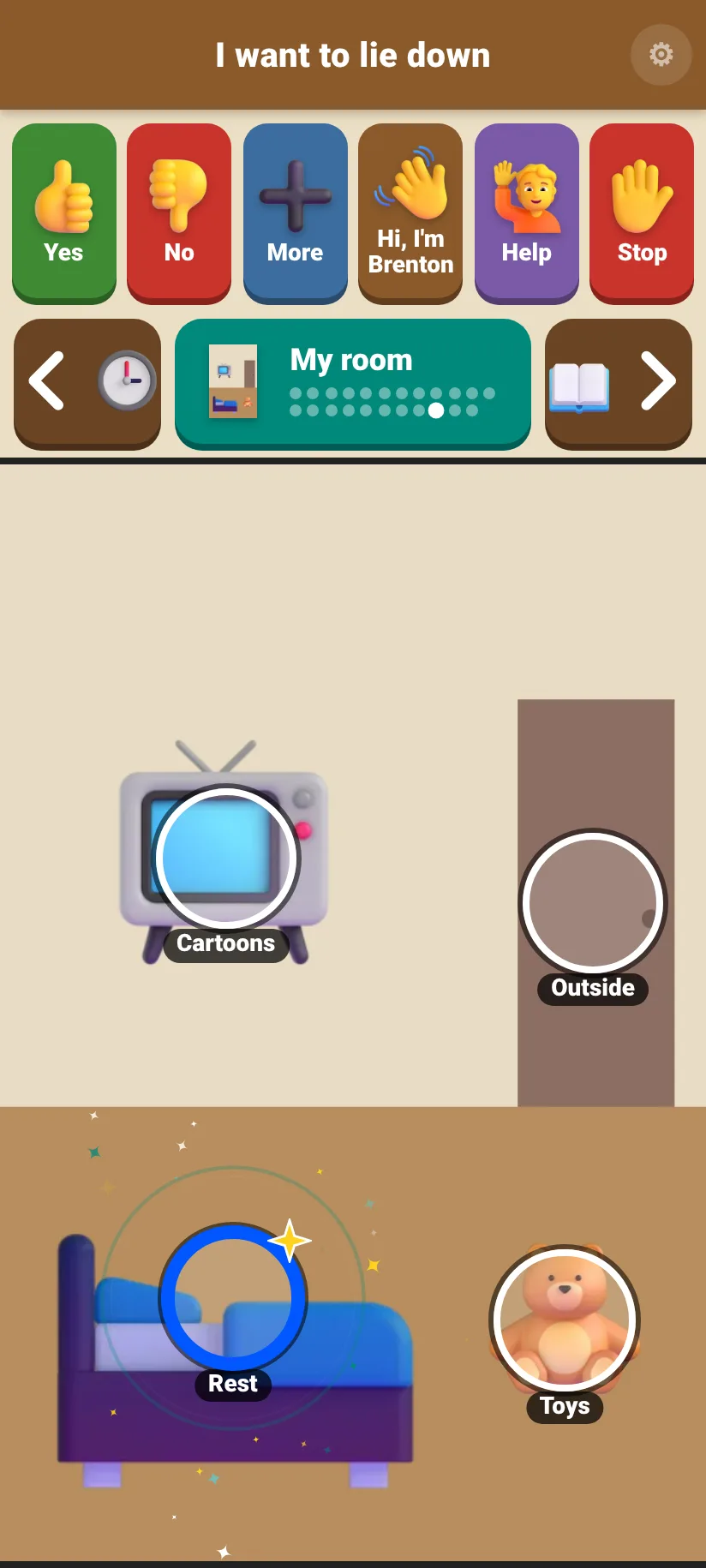
A scene: tap the bed, the TV, the teddy or the door.
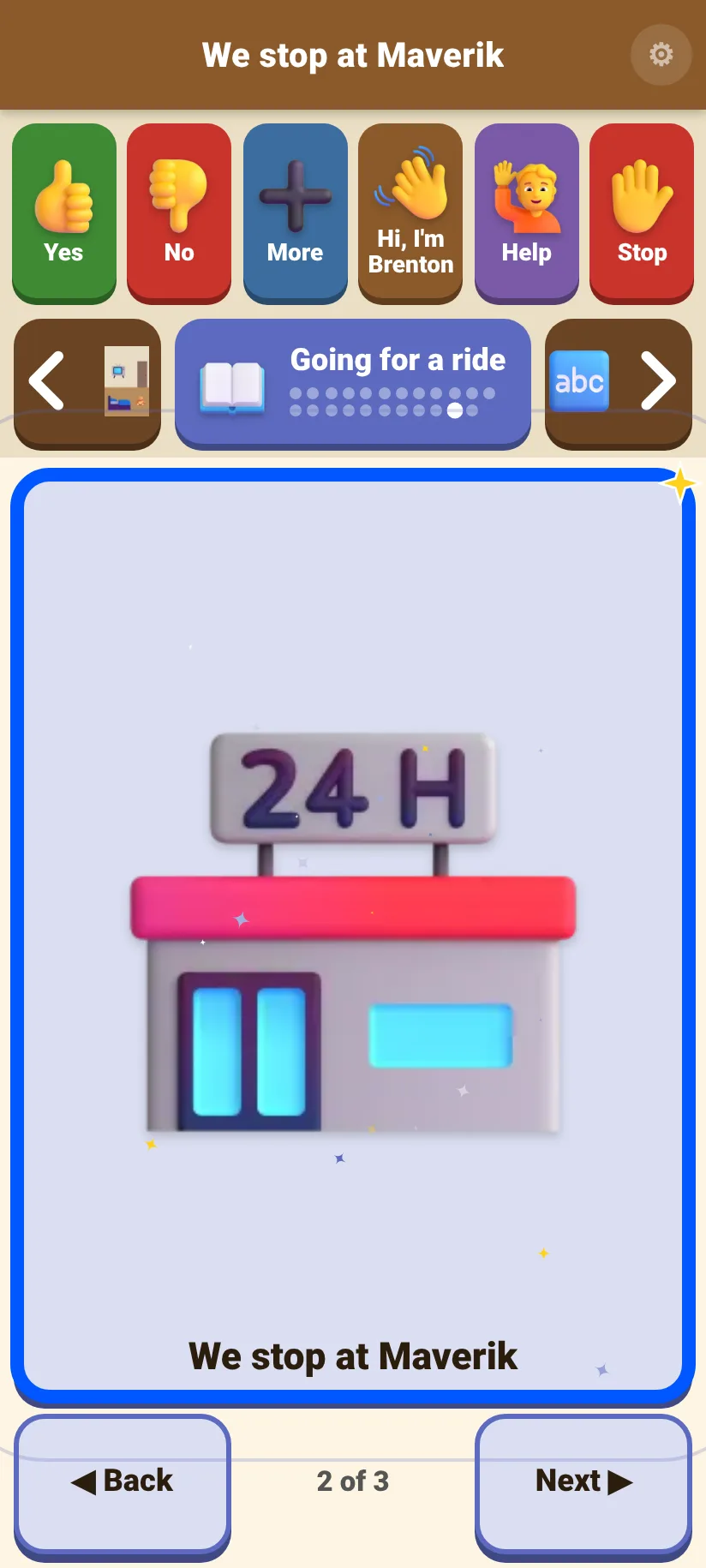
A story, one step at a time.
16Stickers, shortcuts and scanning
- 🏷️QR stickers
Hold ⚙ → Page stickers → 🏷️ QR stickers to print: one for each page, six to a sheet (untick the ones you don't need). Laminate them and stick them where they're needed: Food by the fridge, Places by the door. To use one: tap the page name at the top, then 📷 Scan a sticker, and point the camera at it: the board turns to that page. The phone's own camera can scan them too. A sticker only turns the page; it never says anything by itself.
- 📶NFC stickers
On phones with NFC: stickers that work by touch (plain NFC stickers, the kind called NTAG213). In Settings → Page stickers, choose a page, tap Write a sticker and hold the sticker to the back of the phone. Then tick Read NFC stickers while Talanoa is open (the phone asks once to allow NFC): touching the phone to a sticker opens its page. With Talanoa closed, Android opens it at that page itself.
- 📱Shortcuts
Hold Talanoa's icon on the home screen for shortcuts straight to I want, I feel, Ouch and Food.
- 🟧Scanning
Settings → Scanning (off to start with), for someone who finds it hard to tap one picture. The pictures light up one after another in an orange frame (the page's pictures, then the ◀ ▶ arrows, then the top row), and a tap anywhere below the brown bar chooses the one that's lit: the whole screen is one big button. A switch that types Space or Enter works too. Set how long each one stays lit (1 to 5 seconds); Rows first lights a whole row, then its pictures (quicker once he knows it); Say each picture's name reads them out as they light up. After 3 rounds with nothing chosen it rests until the next tap. Hold ⚙ for Settings as usual.
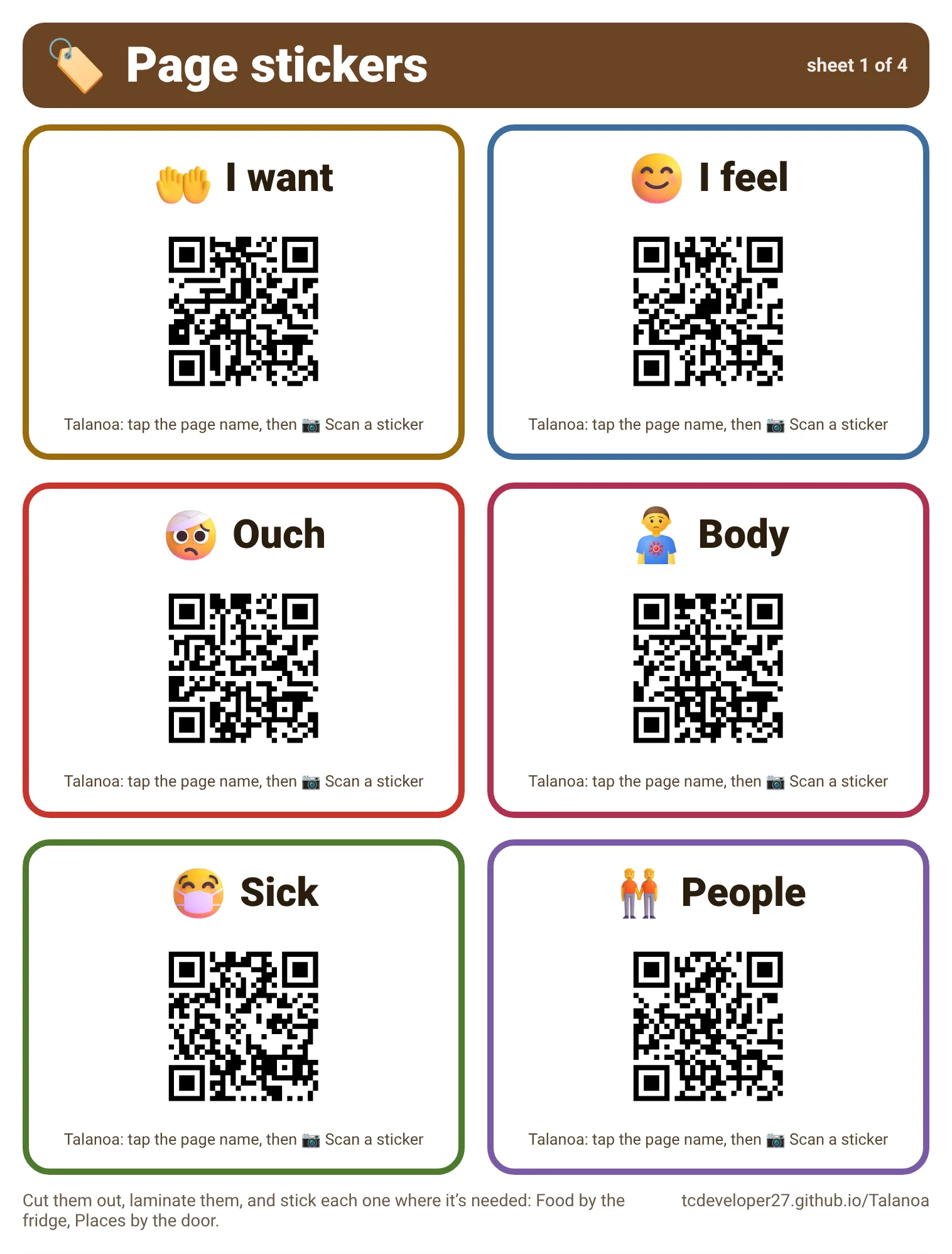
A sheet of QR page stickers.
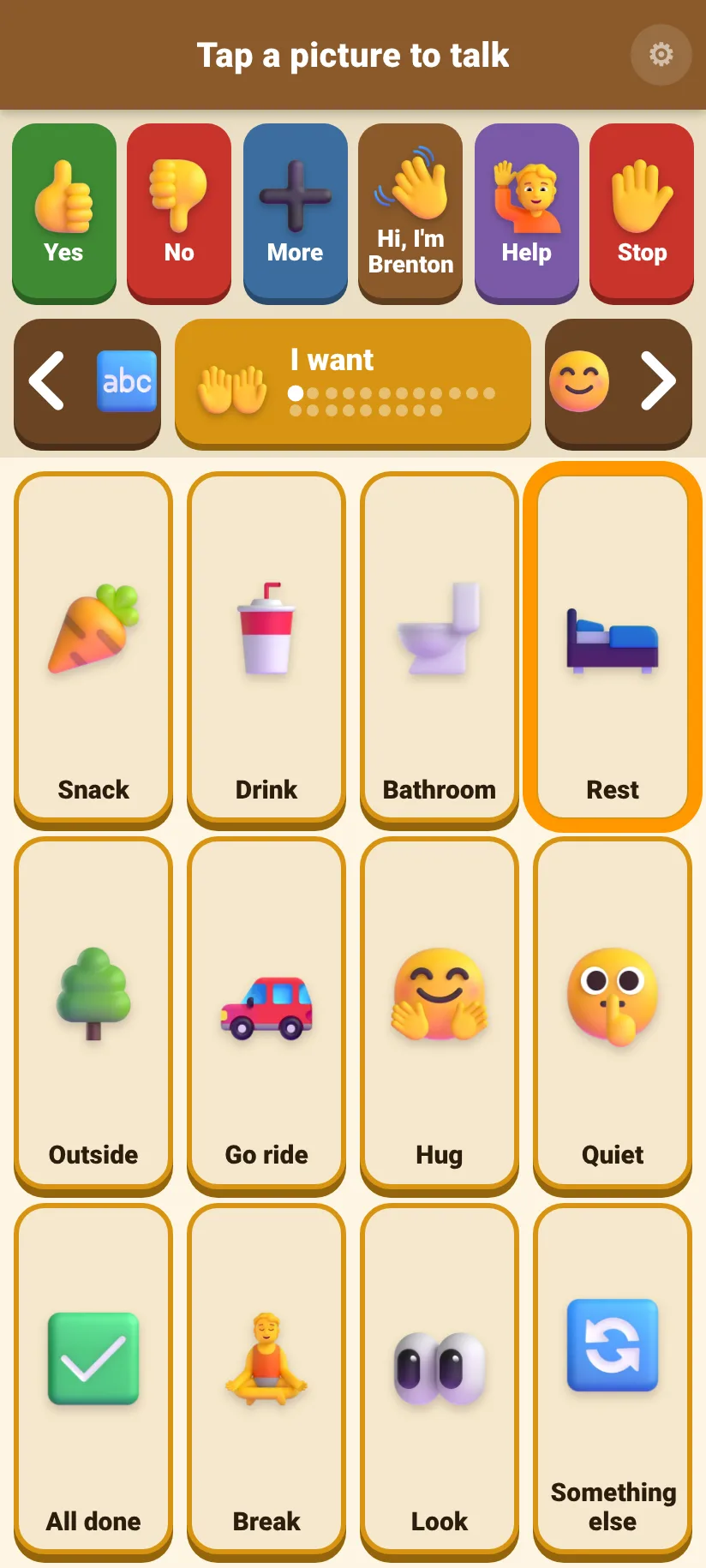
Scanning: tap anywhere to choose the lit picture.
17Settings
Settings belong to each phone. Changing them on one phone doesn't change any other.
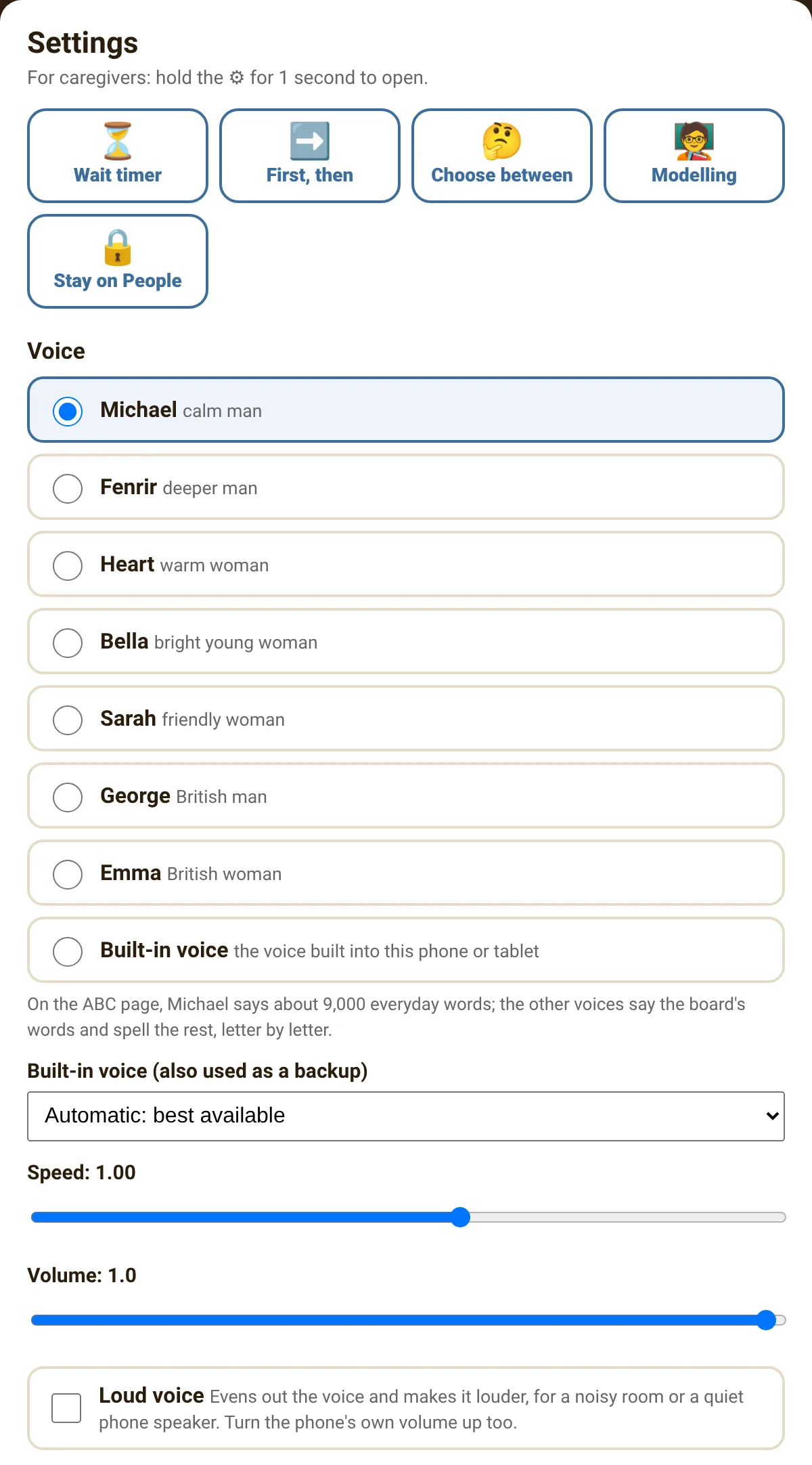 ABCDE
ABCDE- AStaff tools. ⏳ Wait timer, ➡️ First, then, 🤔 Choose between, 🧑🏫 Modelling and 🔒 Stay on this page (section 14). A tool that's on is shown in blue.
- BVoice. Tap a name to choose it. You'll hear "Hi! This is my voice." Choose the one that suits the resident. Michael, the one it starts with, is the only one that knows the ABC page's everyday words (section 10). Below the list, Built-in voice (also used as a backup) picks which of the phone's own voices fills in when a recording can't play; Automatic is fine.
- CSpeed. Slide left for slower speech, right for faster. 1.00 is normal; the voice keeps its own pitch at any speed.
- DVolume. The app's own loudness. Also check the phone's side buttons.
- ELoud voice. Off to start with. Evens out the voice and makes it noticeably louder, without crackling, for a noisy room or a quiet phone speaker. You'll hear the sample voice when you tick it.
The 7 recorded voices, and the phone's own
| Voice | Sounds like |
|---|---|
| Michael default | calm man |
| Fenrir | deeper man |
| Heart | warm woman |
| Bella | bright young woman |
| Sarah | friendly woman |
| George | British man |
| Emma | British woman |
| Built-in voice | the voice built into the phone or tablet (sound depends on the device) |
 FGHIJKLMNOPQ
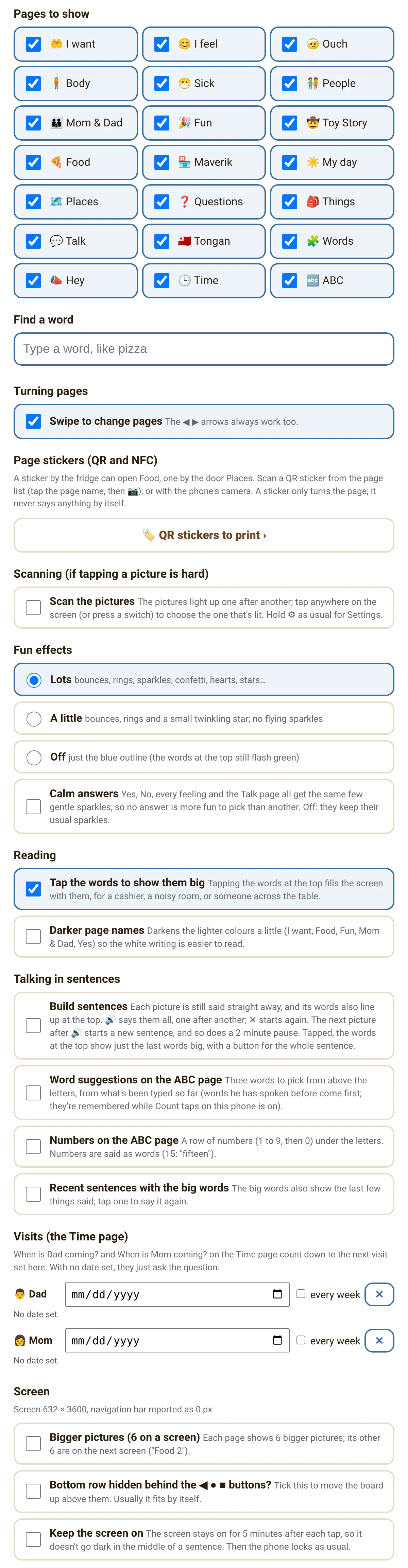
- FPages to show. Untick a page to hide it on this phone; tick it to bring it back. At least one page always stays on.
- GFind a word. Type part of a word to see which page it's on; tap a result to go there, with the picture outlined (section 12).
- HSwipe to change pages. On to start with. Untick it if pages turn by accident; the ◀ ▶ arrows always work.
- IPage stickers. QR stickers to print and, on phones with NFC, stickers to write and read by touch (section 16).
- JScanning. Off to start with. The pictures light up one after another, and a tap anywhere chooses the lit one (section 16).
- KFun effects. Lots (bounces, rings and sparkles), A little (bounces, rings and a small twinkling star) or Off (just the blue outline; the words at the top still flash green). Lots to start with, or A little on a phone set to reduce animations. Turn it down if the sparkles distract a resident or the phone feels slow.
- LCalm answers. Off to start with. When it's on, Yes, No, every feeling and the Talk page all get the same few gentle sparkles, so nobody picks an answer just for the show.
- MTap the words to show them big. On to start with (section 8). Untick it if the big words keep opening by accident.
- NDarker page names. Off to start with. Darkens the lightest colours a little (I want, Food, Fun, Mom & Dad, and Yes on the top row) so the white writing is easier to read.
- OTalking in sentences. Four extras, all off to start with: Build sentences, Word suggestions and Numbers on the ABC page, and Recent sentences with the big words (section 12).
- PVisits. The date of Dad's and Mom's next visit, and whether it's every week, for Dad coming? and Mom coming? on the Time page (section 13). Underneath, when the next one is. ✕ clears it.
- QScreen. Bigger pictures shows 6 on a screen instead of 12, each page in two ("Food", "Food 2"); off to start with. What Chrome reports about the screen: its size, and the navigation bar's height (often 0, even when there is one). If the bottom row hides behind the ◀ ● ■ buttons, tick Bottom row hidden… to move the board up. Keep the screen on (off to start with) keeps it on for 5 minutes after each tap, so it doesn't go dark mid-sentence.
 RSTUVWX
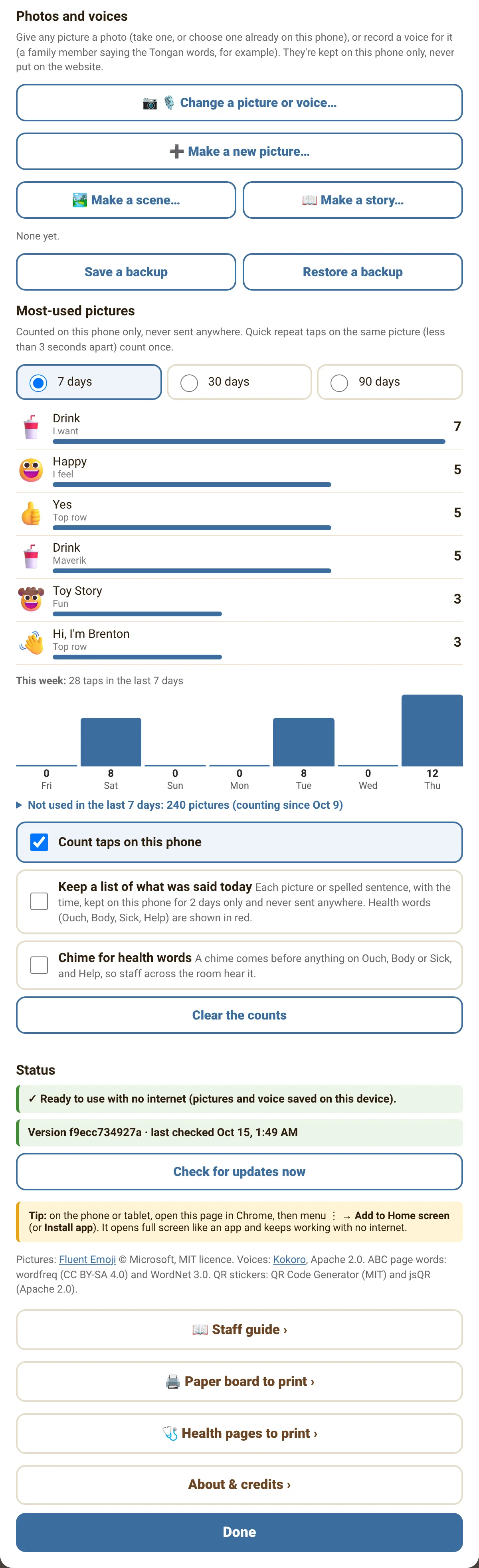
- RPhotos and voices. Give a picture a photo, or record a voice for it (section 9); make new pictures, scenes and stories (section 15). The scenes and stories on this phone are listed underneath, to change them.
- SSave a backup · Restore a backup · Send a backup to another phone. Keeps everything made on this phone safe in one file, puts it back, or sends it to another phone (section 15). Underneath: when the last backup was made.
- TMost-used pictures · This week. The 20 pictures used most in the last 7, 30 or 90 days; tap the line underneath to see which weren't used in that time. Counted on this phone only and never sent anywhere. Quick repeat taps on the same picture (less than 3 seconds apart) count once, and taps made by staff count too, unless Modelling is on. Use it to see which words matter, and to tell the family what's missing. Underneath, This week shows the taps on each of the last 7 days and the pictures used for the first time.
- UCount taps · today's list · health chime · Clear the counts. Count taps on this phone is on to start with. Keep a list of what was said today (off to start with) lists each picture and spelled sentence with its time, health words in red, for 2 days only. Chime for health words (off to start with) puts the attention chime before anything on Ouch, Body or Sick, and Help, so staff across the room hear it. Clear the counts clears the counts, today's list, and the words remembered for word suggestions.
- VStatus. "✓ Ready to use with no internet" means everything is saved (while it's saving, it says how far it has got). Below it you'll see the version and when it last checked for updates.
- WCheck for updates now. Gets the newest version straight away (see section 18).
- XStaff guide · Paper board to print · Health pages to print · About & credits. This guide, the paper board (section 21), just the health pages (section 11), and who made Talanoa. The guide opens with no internet too; the PDFs to print need the internet.
Tap Done at the bottom to close Settings.
18Updates
You don't have to do anything. New words and fixes arrive by themselves.
- The phone checks when Talanoa opens, when the screen turns back on, and every 30 minutes.
- It never changes while someone is tapping. It waits until nobody has tapped for 2 minutes, or the screen is off, and then comes back on the same page.
- To update right now: hold ⚙ → Check for updates now. If there's something new, the app restarts by itself with it.
| The message says… | Meaning |
|---|---|
| ✓ You have the latest version. | Nothing to do. |
| Downloading the new version… the app will restart by itself. | Wait a few seconds. |
| A new version is ready. It switches on by itself when the board isn't in use, or tap Check for updates now to switch now. | It will update on its own soon; tap the button to switch straight away. |
| Could not check: no internet connection right now. | Connect to Wi-Fi and try again. The board still works normally. |
19Without Wi-Fi
Once the phone shows ✓ Ready to use with no internet, Talanoa works anywhere: on outings, in the car, at the store, or when the Wi-Fi is down. Pictures, words and the chosen voice are all saved on the phone.
20Helping someone talk
The most helpful thing staff can do costs nothing: use the board yourself, every day.
- 🗣️Use the board when you talk to them
As you speak, tap the main word on their board: "Let's go to Maverik", "Do you want more?" Children hear thousands of hours of talk before they say a word; someone learning a talker needs to see it used the same way. Ask first ("Can I show you on your phone?"), or point to the paper board instead. Switch on Modelling first (section 14), so your taps aren't counted as his.
- 🚫Show, don't test
No quizzing ("Show me Drink!"). Just use the words naturally while you talk.
- ⏳Wait
After a question, count to ten in your head before helping. Finding the right page and picture takes time.
- 💬Answer every message, even when the answer is no
"I hear you, you want a drink. We'll get one after lunch." That's how people learn their words work.
- 🙅No means no
"No", "Stop", "Not now" and "Leave me alone" are real. Respect them whenever you safely can, or explain why not.
- 🎈Playing with it is learning
Tapping lots of pictures, or the same one again and again, is how people explore their words, the way a baby babbles. Don't stop it: say the words back, and join in.
- 📍It's their voice: keep it with them
All day, charged, in every room. Never take the board away as a punishment or to get someone to behave.
- 📈Notice what's missing
Settings → Most-used pictures shows which words get used (your own taps count too, unless Modelling is on). When someone seems to want a word that isn't there, tell the family.
21The paper board
Every page on paper, in the same colours and places as on the phone (the ABC sheet is a simple letter board).
For when the phone is charging, lost or broken; for the shower, the bath, the pool or the rain; and to point to words while you talk.
- 1Print it
Hold ⚙ → 🖨 Paper board to print, then 🖨 Print. Or print the ready-made PDF: Talanoa-Paper-Board.pdf. Card stock is best.
- 2Laminate the sheets
Keep them on a ring, in the same order as the phone's pages: one set in their bag, one at home.
- 3Cut out the About me card
It's on the cover. Keep it in a wallet or bag.
- 4Just the health pages
For doctor and hospital visits: hold ⚙ → 🩺 Health pages to print (Ouch, Body and Sick), or Talanoa-Health-Pages.pdf (section 11).
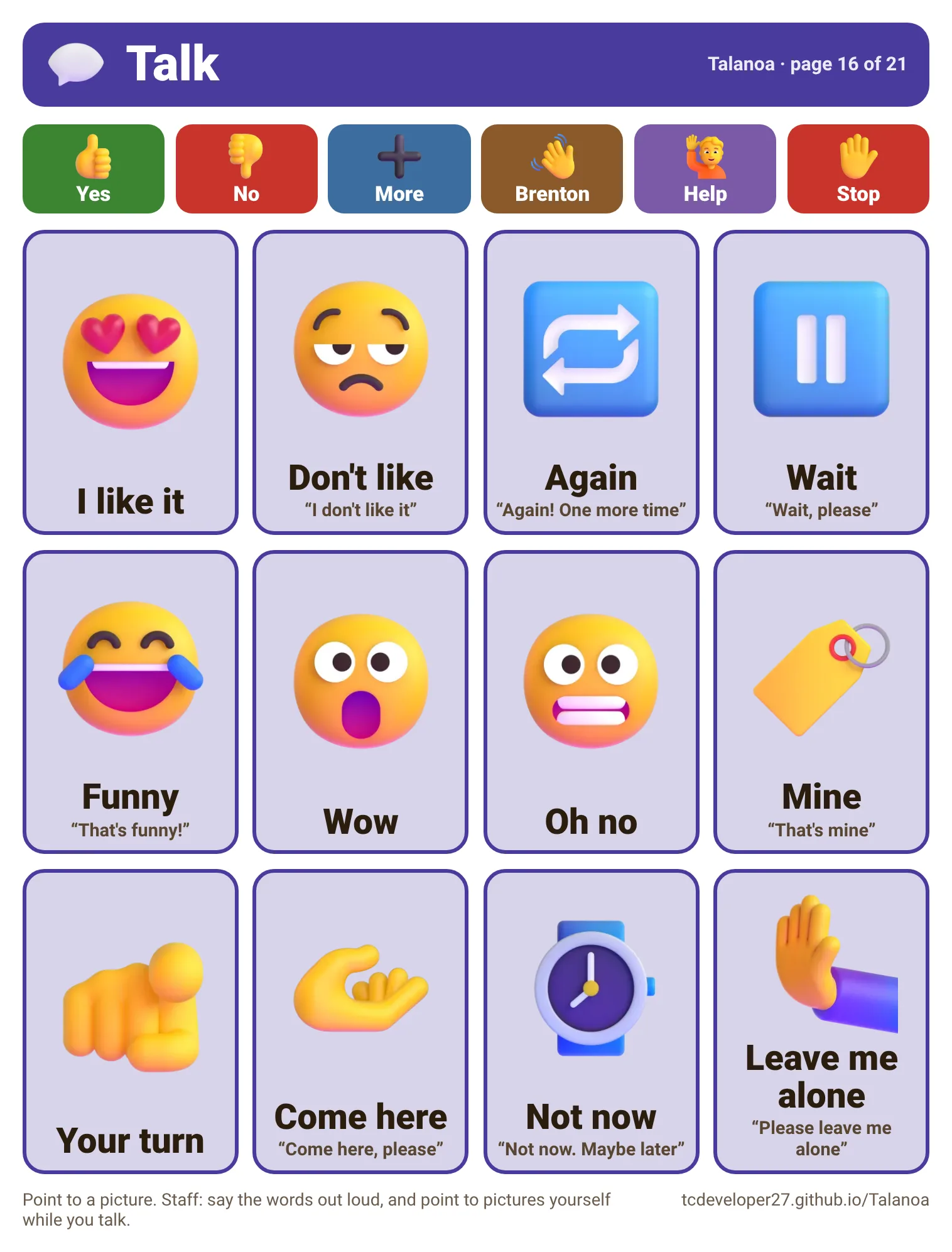
One sheet: the page name, the top row, then the 12 pictures, with what each one says written underneath when it's more than its name.
22If something goes wrong
| What you notice | What to do |
|---|---|
| No sound at all | Turn the volume up with the phone's side buttons. Check the phone isn't on silent. In Settings, check Volume isn't low. |
| The voice sounds robotic | In Settings, Built-in voice is probably chosen. Choose Michael (or another named voice). If a named voice is already chosen, the phone's own voice is filling in because that voice isn't saved on the phone yet: connect to Wi-Fi and wait for ✓ Ready to use with no internet (section 19). |
| Only a brown bar, no pictures | It was opened in a preview (from email or Google Drive). Open Talanoa from its home-screen icon, or in Chrome. |
| A page is missing | Settings → Pages to show → tick it. |
| Settings won't open | Press and hold the ⚙ for a full second. A quick tap does nothing, on purpose. |
| New words from the family aren't showing | Connect to Wi-Fi, then Settings → Check for updates now. |
| "404 / There isn't a GitHub Pages site here" | The address was typed wrong. Use the QR code, or type tcdeveloper27.github.io/Talanoa with a capital T. |
| The ▶ arrow (or a swipe) jumped back to "I want" | That's normal: after the last page it starts again at the first. |
| Pages keep turning by accident | Settings → untick Swipe to change pages. The ◀ ▶ arrows still work. |
| The words keep adding up at the top, with 🔊 and ✕ | That's Build sentences (section 12): each picture's words line up so 🔊 can say them all. ✕ clears them. To turn it off: Settings → Talking in sentences → untick Build sentences. |
| Only 6 pictures on a screen, and pages called "Food 2" | That's Bigger pictures (section 12). To go back to 12: Settings → Screen → untick Bigger pictures. |
| The bar at the top is purple, with 👆 and ✕ | Modelling is on (section 14): taps aren't counted. Tap ✕ on the bar to switch it off; it also goes off by itself after 10 minutes without a tap. |
| The ◀ ▶ arrows are gone and the page won't turn | Stay on this page is on (a 🔒 shows by the page name). Hold ⚙ → 🔓 Unlock. It also unlocks by itself after 2 hours. |
| Pictures keep lighting up in an orange frame, and tapping a picture doesn't say it | That's Scanning (section 16): a tap anywhere chooses the lit picture. To turn it off: Settings → Scanning → untick Scan the pictures. |
| A small round pie or a green ✓ at the top right | The wait timer (section 14). Tap it to see the timer; after it ends, Close clears it. |
| A chime before some words | That's Hey! and Excuse me on the Hey page, or Chime for health words (Settings → Most-used pictures). |
| A gold ⭐ on a picture | The word of the week (Settings → 🧑🏫 Modelling). It goes after 7 days. |
| 📷 Scan a sticker says the camera didn't start | In Chrome: ⋮ → Settings → Site settings → Camera, and allow tcdeveloper27.github.io. |
| A picture is glowing | That's the last picture tapped. It stops glowing by itself after 30 seconds, or as soon as another picture is tapped. |
| Too many sparkles, or the phone feels slow | Settings → Fun effects → A little or Off. |
| The words suddenly filled the whole screen | That's Show it big (section 8). Tap ✕ Close or Back; it also closes by itself after a minute. To stop it opening by accident: Settings → Reading → untick Tap the words to show them big. |
| "The microphone didn't start" when recording | Close any call or other app using the microphone. Then in Chrome: ⋮ → Settings → Site settings → Microphone, and allow tcdeveloper27.github.io. Try again. |
| A photo or recording has disappeared | They're kept on the phone only. Hold ⚙ → Restore a backup and pick the backup file. |
| The Tongan words don't sound right | The computer voice can't speak Tongan. Record them in a real voice (section 9). |
| The ABC page spells a word out instead of saying it | With Michael (the voice it starts with) it says the words on the board and about 9,000 everyday words; the other voices know the board's words and the number words. Any other word (often a name) is spelled out in the same voice. To have a word added, tell Tim (section 24). |
| The bottom row is hidden behind the phone's ◀ ● ■ buttons | Close Talanoa and open it again (it fits itself to the phone the first time). If it's still hidden: Settings → Screen → tick Bottom row hidden behind the ◀ ● ■ buttons? |
| The screen keeps turning off | See "Screen timeout" in section 23. |
| Something else looks wrong | Close Talanoa completely and open it again from its icon. If it still happens, take a photo of the screen and email it to Tim Broussard at tcdeveloper@gmail.com. |
23Looking after the phone
- 🔋Charge every night
A flat battery means a resident with no voice.
- ⏲️Screen timeout
On most Android phones: Settings → Display → Screen timeout, and choose a longer time (for example 10 minutes). Or, in Talanoa: Settings → Screen → Keep the screen on (5 minutes after each tap).
- 🔊Volume
Use the side buttons while Talanoa is talking to set how loud it is.
- 🧽Clean and protect
Wipe the screen with a slightly damp cloth. A sturdy case is a good idea.
- 🔈Loud places
A small clip-on Bluetooth speaker makes the voice easier to hear in shops and cars (Bluetooth adds a short delay before each sentence). Show it big helps too (section 8).
- 🆘Emergency information
Set it up once, so first responders can see it on the lock screen (section 8).
24Asking for changes
New words, different wording, a real photo of someone instead of a picture: the family can add these. Write down what's needed (for example "add Swing, 'I want to go on the swing'") and pass it to Tim Broussard. The change reaches the phone automatically, usually the same day. Settings → Most-used pictures can help decide what to add. A photo of a person is best added on the phone itself (section 9), so it stays private: anything Tim adds goes on the public website.
25Credits & contact
Talanoa was made with love for the residents of Faleofaz, by:
Pictures: Fluent Emoji © Microsoft (MIT licence). Voices recorded with Kokoro, an open-source speech model (Apache 2.0). ABC page words: chosen with wordfreq by Robyn Speer (data CC BY-SA 4.0) and WordNet 3.0 © 2006 Princeton University. QR codes: QR Code Generator by Kazuhiko Arase (MIT licence) and jsQR by Cosmo Wolfe (Apache 2.0). "QR Code" is a registered trademark of DENSO WAVE INCORPORATED.